Activating Navigation
Starting Navigation
- Press [
 ] button. The home screen opens.
 - Press [Map] on the front seat control key or Press [MAP] on the head unit. The map screen opens.
Current Location Specification
Press [MAP] on the head unit while using the system specifies the current vehicle location and the map of the surrounding area.
Simple Navigation Feature
Simple navigation features are listed for easy access to frequently used features.
On the map screen, press the controller on the front or press [h] on the screen.
- Select [Search] to set destinies by entering the full name or initial, phone number or address.
- [Home]: a route to the location saved as Home is advised.
- [Work]: a route to the location saved as Work is advised.
- Select Previous Destination to have a route advised to the selected destination.
- [Navigation Volume]: Controls the volume of Navigation.
- [Mute]: Check the box to set Mute.
- [Navigation Volume Priority]: Check the box to have the volume of Navigation Guidance louder than the audio volume.
Changing Map View
Map View change is available by pressing [ ]/[
]/[ ]/[
]/[ ] on the map screen.
|
|

- [
 ] (Heading direction specification in 2D): Map is displayed always having the vehicle’s heading direction pointing up.
 - [
 ] (Heading direction specification in 3D map): Map displays buildings in 3D.
 - [
 ] (Fixed map in 2D display): Map is displayed always having the top directs the north regardless the vehicle’s heading direction.
Switching Map Scale
Manually Switching Map Scale
Change the map scale by rotating the controller on the front seat key left/right or swiping two fingers on the screen.
Automatically Switching Map Scale
The map scale can be automatically set/canceled according to the current vehicle speed.
Press [Auto] on the map screen.
|
|
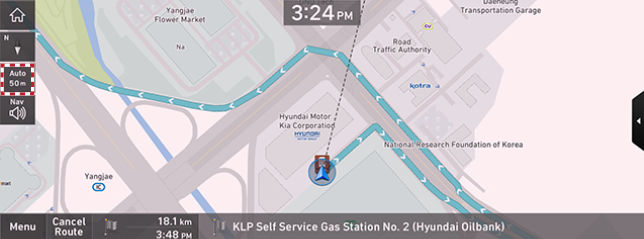
- [
 ] (Auto Inactivation): Fixed scale
 - [
 ] (Auto Activation): Automatic scale (Scale changes based on the current vehicle speed)
Navigation Volume
Sets the volume of the navigation guide voice and sound effect.
- Press [Nav] on the map screen.
|
|
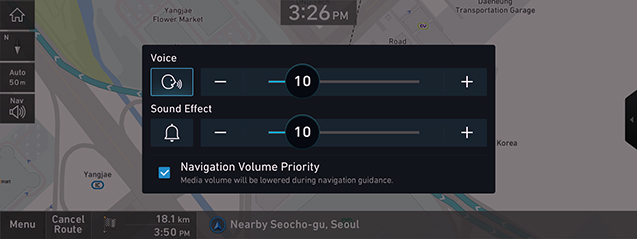
- Select a desired item.
- [
 ]/[
]/[ ]: Navigation guide voice and sound effect activation
 - [
 ]/[
]/[ ]: Navigation guide voice and sound effect mute
 - [Voice]: Adjusts the volume of the navigation guide voice.
- [Sound Effect]: Adjusts the volume of the navigation guide effect.
- [Navigation Volume Priority]: Check the box to have the volume of navigation guidance louder than the audio volume.
Navigation Settings
- Press [Menu] > [Settings] on the map screen.
- Moves to navigation settings screen. Reference "Navigation settings" for details.
Location Sharing
The location information can be shared for a set time period to another person by entering his/her phone number.
- Press [Menu] > [Location Sharing] on the map screen.
- Reference "Location Sharing" for details.
|
,Reference |
|
Previous Destinations Settings
When the navigation starts, pop-up displays of previous and frequent destinations automatically open for 10 seconds.
During the opening, pressing a destination and selecting a desired route start the guidance.
(Available only when no route is set.)
|
|
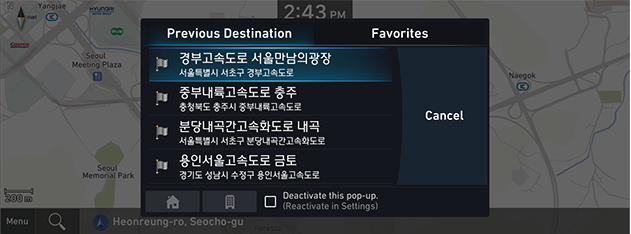
- [Previous Destinations]: Shows previous destinations.
- [Favorites]: Shows frequently visited destinations.
- [
 ]: Guides to Home.
 - [
 ]: Guides to Work.
 - [Deactivate this pop-up]: Check the box to stop the popup of previous destinations.
Registering Location
The current vehicle can be registered.
- Press [Menu] > [Save] on the map screen.
-
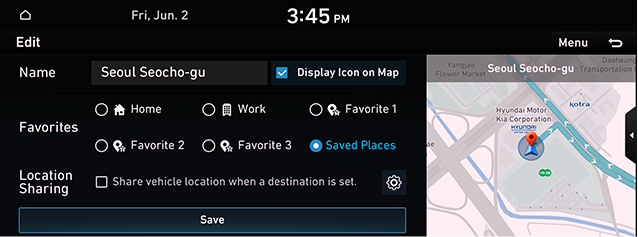
- Select a desired item.
- [Saved Places]: The current vehicle location is automatically saved in the list of saved place.
- [Home]/[Work]/[Favorites 1, 2, 3]The current vehicle location is automatically saved to your favorites.
|
,Reference |
|
Press [Menu] > [Destination] > [Saved Places] > [Favorites] or [Saved Places] to check the registered location. |
Nearby Info.
Setting POI Display
You can set the category of facilities displayed on the map screen.
- Press [Menu] > [Nearby Info.] > [Show POI Icons] on the map screen.
-
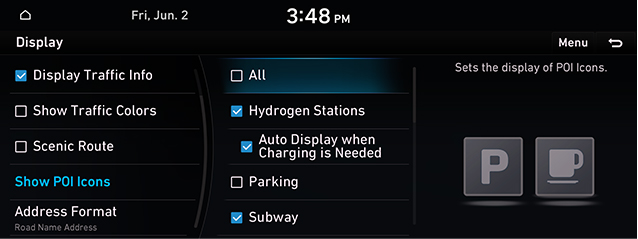
- Select a facility to mark on map.
Searches POI Categories
- Press [Menu] > [Nearby Info.] > [Nearby POIs] on the map screen.
-
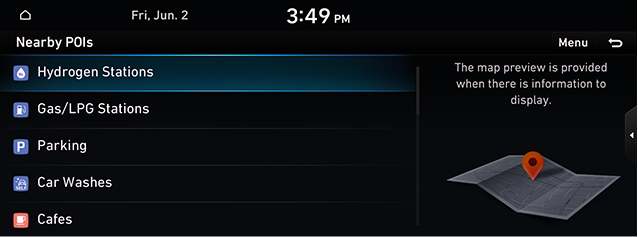
- Select a desired facility category.
- Select a desired list.
Home, Work, Favorites
Home, Work or a frequently visited location can be saved/edited in or deleted from favorites.
Saving Favorites
- Press [Menu] > [Destination] > [Saved Places] > [Favorites] on the map screen.
- Press a desired item.
-
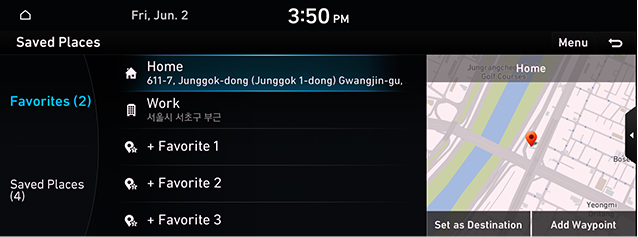
- Use search menu to set Home, Work, Favorites 1-3.
- When setting is completed, press [OK].
|
,Reference |
|
Editing Favorites
- Press [Menu] > [Destination] > [Saved Places] > [Favorites] > [Menu] > [Edit] on the map screen.
- Select an item to edit. (ex: Home)
|
|
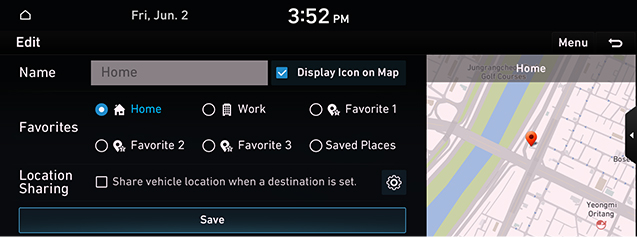
- Select and Edit a desired item.
- [Display Icon on Map]: Sets a symbol to specify on the map screen.
- [Type]: Changes the Address Book.
- [Location Sharing]: Share vehicle location when a destination is set.
- Press [Save].
Deleting Favorites
- Press [Menu] > [Destination] > [Saved Places] > [Favorites] > [Menu] > [Delete] on the map screen.
|
|
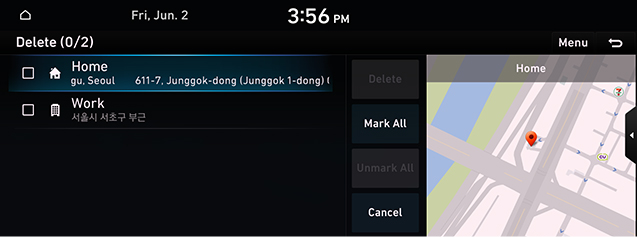
- Select the desired item, then press [Delete].
Saving/Editing/Deleting Locations
You can save/edit/delete a location of interest.
Saving Locations
Saves frequently visited locations.
- Press [Menu] > [Destination] > [Saved Places] on the map screen.
- Press [Saved Places] on the address book screen.
- Press [Menu] > [Add].
- Set a desired location by using search menu.
-
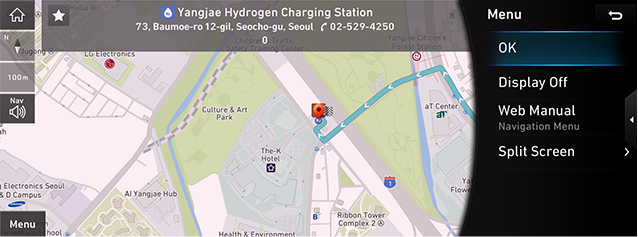
- Press [OK].
|
,Reference |
|
Reference "Setting Destinations by Saved Place" to set a registered location as a destination. |
Editing Location
- Press [Menu] > [Destination] > [Saved Places] on the map screen.
- Press [Saved Places] on the address book screen.
- Press [Menu] > [Edit].
- Select an item to edit.
|
|
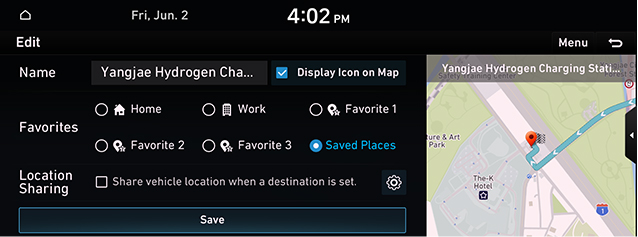
- Select and edit a desired item.
- [Name]: After editing the name, press [OK].
- [Display Icon on Map]: Sets a symbol to specify on the map screen.
- [Favorites]: Changes the address book.
- [Location Sharing]: Share vehicle location when a destination is set.
- Press [Save].
Deleting Locations
- Press [Menu] > [Destination] > [Saved Places] on the map screen.
- Press [Saved Places] on the address book screen.
- Press [Menu] > [Delete].
|
|
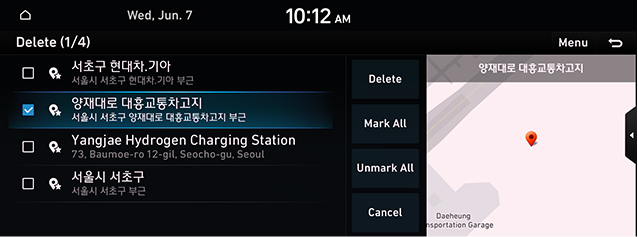
- Select the desired item, then press [Delete].
Sorting Locations
- Press [Menu] > [Destination] > [Saved Places] on the map screen.
- Press [Saved Places] on the address book screen.
- Press [Name]/[Date] to sort the list. Or press [Menu] > [Name] or [Date].
- [Name]: Locations are sorted in alphabetical order.
- [Date]: Locations are sorted in saved date order.
Managing Registered Locations
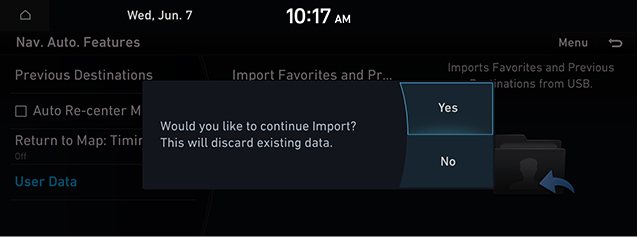
Importing Registered Locations from USB Memory
This feature is used to import registered locations saved in a USB memory.
- Connect a USB memory to the USB port.
- Press [SETUP] > [Navigation] > [Nav.Auto.Features] > [User Data] > [Imports Favorites and Previous Destinations to USB.] on the home screen.
|
|
Exporting Registered Locations to USB Memory
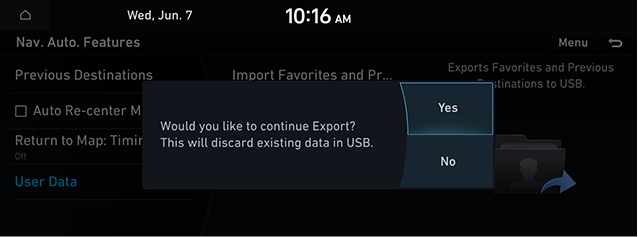
This feature is used to export registered locations to a USB memory.
- Connect a USB memory to the USB port.
- Press [SETUP] > [Navigation] > [Nav.Auto.Features] > [User Data] > [Exports Favorites and Previous Destinations to USB.] on the home screen.
|
|
|
,Reference |
|