Navigation settings
Set items to display or guide item on navigation map screen.
Move to Navigation setting screen
In the home screen, Press [Setup] > [Navigation]. Navigation screen is displayed.
|
|
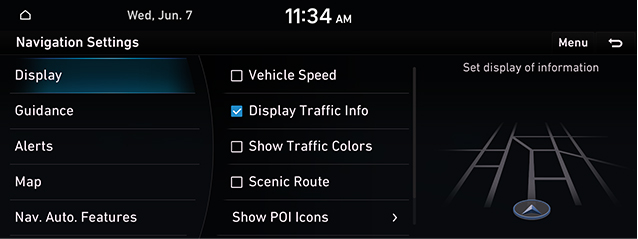
Display
- In navigation settings screen, press [Display].
|
|
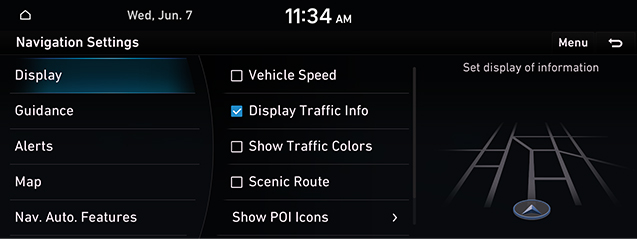
- Press the desired item.
- [Vehicle Speed] : Select to always show the vehicle speed on the Map screen.
- [Display Traffic Info] : Displays nearby traffic information in 2D and 3D Map Views.
- [Show Traffic Colors] : Shows the traffic color on route.
- [Scenic Route] : Shows scenic route on the map.
- [Show POI Icons] : Sets the display of POI Icons.
- [Address Format] : Sets the address display type, [Road Name Address] or [Lot Number Address].
Guidance
- In navigation settings screen, press [Guidance].
|
|
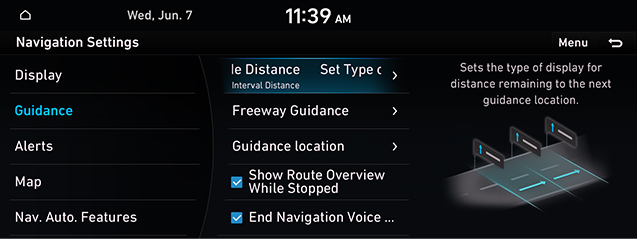
- Press the desired item.
- [Set Type of Guide Distance] : Sets the type of display for distance remaining to the next guidance location.
- [Freeway Guidance] : Sets the freeway guidance.
- [Guidance location] : Sets the display of guidance location.
- [Show Route Overview While Stopped] : Shows the full route overview when stopped.
- [End Navigation Voice Guidance Near Destination] : Voice Guidance will end near the destination registered in Favorites.
Alerts
- In navigation settings screen, press [Alerts].
|
|
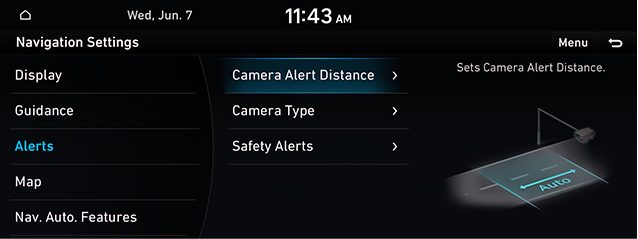
- Press the desired item.
- [Camera Alert Distance]: Camera alert points are guides based on the vehicle speed.
- [Camera Type]: Sets the camera type.
- [Safety Alert]: Sets the safety alert in the daytime/night.
Map
- In navigation settings screen, press [Map].
|
|
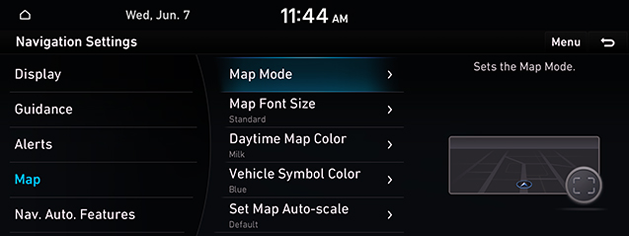
- Press the desired item.
- [Map Mode] : Sets the Map Mode.
- [Map Font Size] : Sets the Map font size.
- [Daytime Map Color] : Sets the Daytime Map color.
- [Vehicle Symbol Color] : Sets properties of the vehicle symbol.
- [Set Map Auto-scale] : Sets the range of Auto-scale which is automatically adjusted according to the vehicle speed.
Navigation Automated Features
- In navigation settings screen, press [Nav.Auto.Features].
|
|
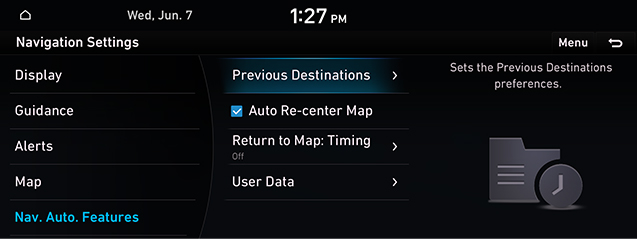
- Press the desired item.
- [Previous Destinations]: Sets about previous destinations.
- [Auto Re-center Map] : Automatically re-centers the Map at the current vehicle position after viewing other locations on the map.
- [Return to Map: Timing] : When guiding a route, the screen automatically returns to the Map screen after a certain period of time from broadcast or media screen. It does not work on the phone projection screen.
- [User Data]: Saved addresses/previous destinations can be exchanged between compatible vehicles using a USB device.
|
,Reference |
|