Running the Bluelink menu
You can run the Bluelink in the system to use the service.
On the All Menus screen, press Bluelink.
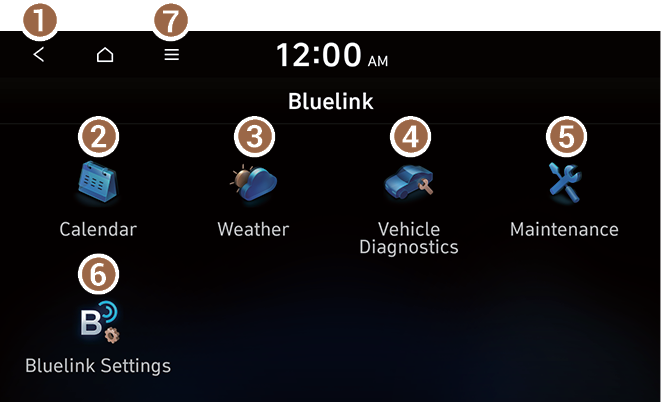
- Returns to the previous step.
- View the schedule details for today and tomorrow. ▶ See "Checking schedule details."
- Can see the weather information. ▶ See "Checking weather information."
- Checks your vehicle for abnormal conditions and displays the result. ▶ See "Diagnosing the vehicle."
- See the information about the intervals for the next maintenance services. ▶ See "Checking maintenance service intervals."
- Access the Bluelink service to use it on the system or check modem information. ▶ See "Configuring the Bluelink settings."
- The list of menu items appears.
- • Display Off: Turns off the screen. To switch the screen back on, press the screen or briefly press the power button.
- • User's Manual on Web (QR Code): Displays the QR code that provides access to the online user manual for the system.

Warning
Driving while distracted may cause a loss of vehicle control that may lead to an accident, severe bodily injury, or death. The driver's primary responsibility is the safe and legal operation of the vehicle, and the use of any vehicle systems, including the touch screen and steering wheel controls that take the driver's eyes, attention, and focus away from safe driving or that are not permissible by the law, should never be used while driving.
- Use the Bluelink features on the system when the vehicle is stationary with the vehicle turned on.
Checking schedule details
View the schedule details for today and tomorrow.
On the All Menus screen, press Bluelink ▶ Calendar.
- To use the calendar, make sure you install the Bluelink App on your smartphone and sign up for the Bluelink Service. Use either Google Play Store or App Store (depending on your smartphone model) to download and install the Hyundai Bluelink App and sign up for the Bluelink Service. ▶ See "Subscribing to the service."
- To use the calendar, make sure your user profile is linked to your Bluelink account. It is not possible to use the calendar if your user profile is set to "Guest." To link your user profile to your Bluelink account, press Setup ▶ User Profile from All Menus.
Calendar screen
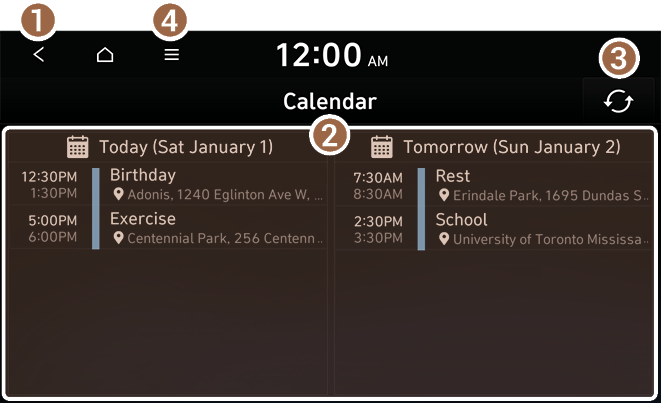
- Returns to the previous step.
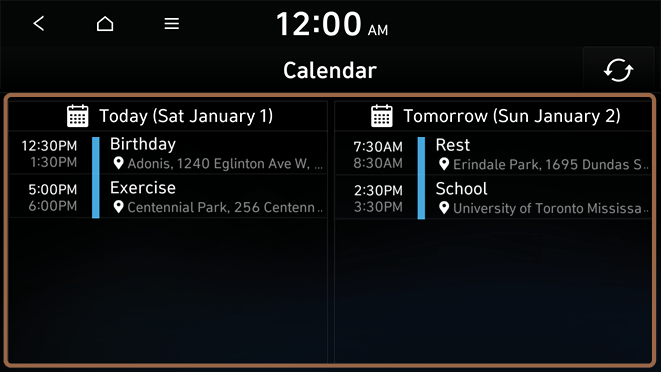
- View the schedule details for today or tomorrow.
- Update with the latest schedule details.
- The list of menu items appears.
- • Display Off: Turns off the screen. To switch the screen back on, press the screen or briefly press the power button.
- • Sync now: Sync to the latest schedule details of the linked account.
- • Select Calendar(s): Select the calendar to display on the screen.
- • User's Manual on Web (QR Code): Displays the QR code that provides access to the online user manual for the system.
- Available icons and their arrangement may differ depending on the vehicle model and specifications.
Setting a destination
You can view schedule details and set a destination by pressing on an event from the calendar screen.
- If location information is registered in the schedule, the registered location is automatically set as the destination.
- From the calendar screen, press on the event to set a destination.
- Press Search Destination.
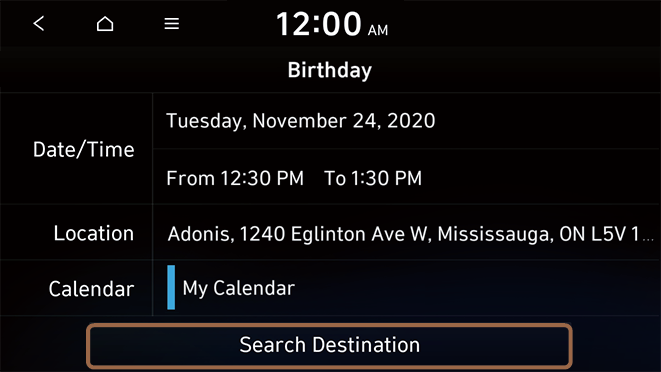
- Check the location of the destination and then press Route.
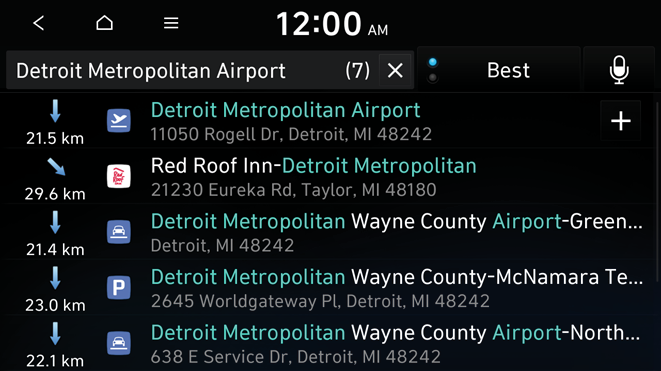
- When you see the search result list, press the desired destination to see on the map.
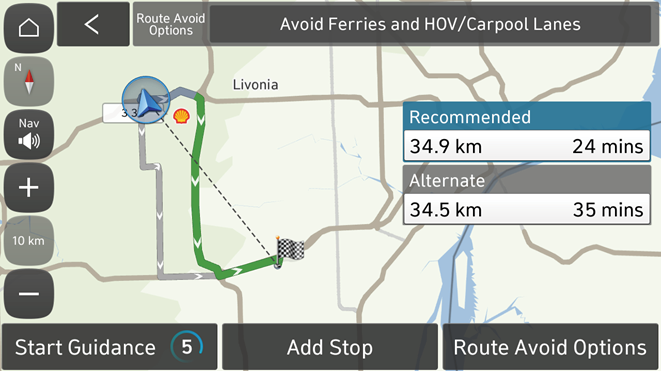
- Select a route and press Start Guidance.
Schedule reminder
A schedule notification pops up at a specified time.
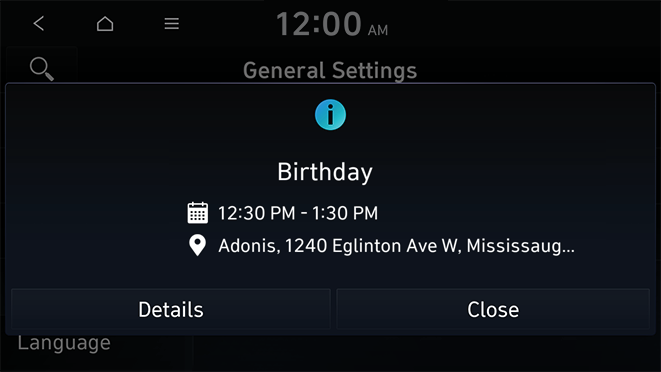
- To view schedule details, press Details.
Checking weather information
You can view weather information (e.g., temperature, humidity, precipitation and rainfall probability) for today, or the weather forecast.
- The weather information is accessible only when the system is connected to the network.
On the All Menus screen, press Bluelink ▶ Weather.
Weather information screen
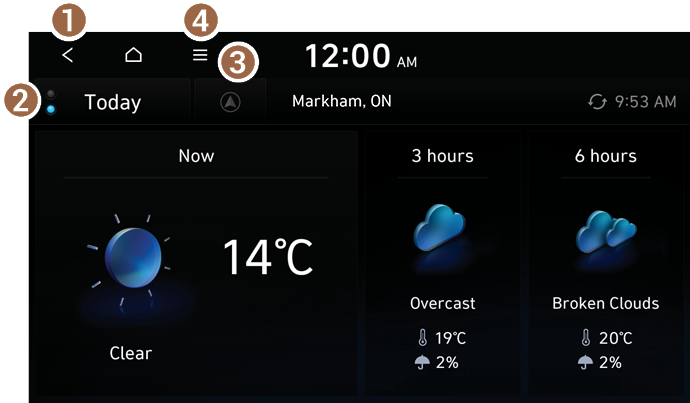
- Returns to the previous step.
- Displays the weather of the current position. If the waypoint or destination is set, you can check the weather of the waypoint or destination.
- Displays the weather of the current position.
- The list of menu items appears.
- • Display Off: Turns off the screen. To switch the screen back on, press the screen or briefly press the power button.
- • Waypoint: Displays the weather of the waypoint, if specified.
- • Destination: Displays the weather of the destination, if specified.
- • Search: Can see the weather information by searching for an address (if equipped).
- • Update Now: Update to the latest weather information
- • User's Manual on Web (QR Code): Displays the QR code that provides access to the online user manual for the system.
Diagnosing the vehicle
You can diagnose your vehicle. The information is sent to the Bluelink Center. You can receive the diagnosed result from the representative and use additional services, such as towing, route guidance to a repair shop, or a maintenance reservation.
- Park your vehicle in a safe place.
- You can start a diagnosis only when the vehicle stops, because some components cannot be diagnosed while the vehicle is moving.
- On the All Menus screen, press Bluelink ▶ Vehicle Diagnostics.
- A remote diagnosis starts. Refrain from using your system until the diagnosis is complete and the result is displayed on the screen. When you move to another screen while a diagnosis is in progress, the diagnosis is canceled.
- Check the result displayed on the screen.
- A diagnosis result provided by this service is only an estimated result based on the signals from your vehicle. Visit a Hyundai Motor Company Service Center or a service coordinator for a detailed diagnosis.
Checking maintenance service intervals
You can see information about the intervals for the next maintenance services. This feature can help you maintain your vehicle on a regular basis.
- On the All Menus screen, press Bluelink ▶ Maintenance.
- Check the maintenance information.
- You can view the driving distance and the number of days left until your next maintenance service. Use the information to determine when to perform the next maintenance service.
- To reset the information, press Reset.
- To access the online user's manual on the Maintenance screen, press
 ▶ User's Manual on Web (QR Code) and then scan the displayed QR code.
Configuring the Bluelink settings
You can subscribe to the Bluelink service or see the modem information.
- For more information: ▶ see "Configuring the Bluelink settings."
Using Voice Local Search
With Bluelink, you can search for locations from the online map database by using voice commands.
When you did not update the map or system or you cannot find your destination in the navigation system, you can use the latest information from the online server to search for locations and receive guidance.
- Press the

 button on the vehicle.
The voice recognition starts with voice guidance.
- After the voice guidance ends and you hear a beep, say the POI name or Address.
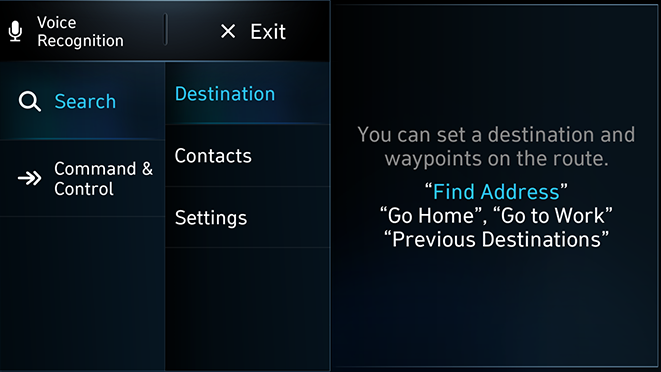
- Depending on the system language, voice recognition may not be supported.
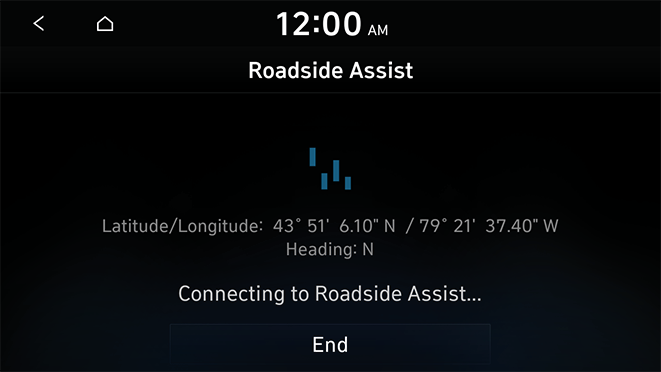
Contacting the roadside assistance
When you encounter a disabled vehicle or another problem on the road, you can contact the roadside assistance directly to receive vehicle towing.
Upon any emergency, press the  button on the vehicle.
- When connected to a roadside assist service agency, ask a representative for the service you need.
- To end the call, press the button.