Configuring the sound settings
You can change the sound settings such as speaker volume and sound effects.
- Some functions may not be available depending on the infotainment system and amplifier specifications on the vehicle.
- On the All menus screen, press Settings ▶ Sound.
The sound settings screen appears.
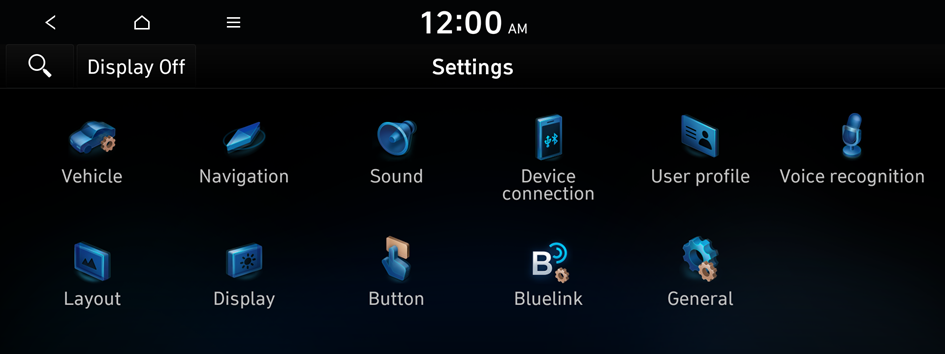
Type1
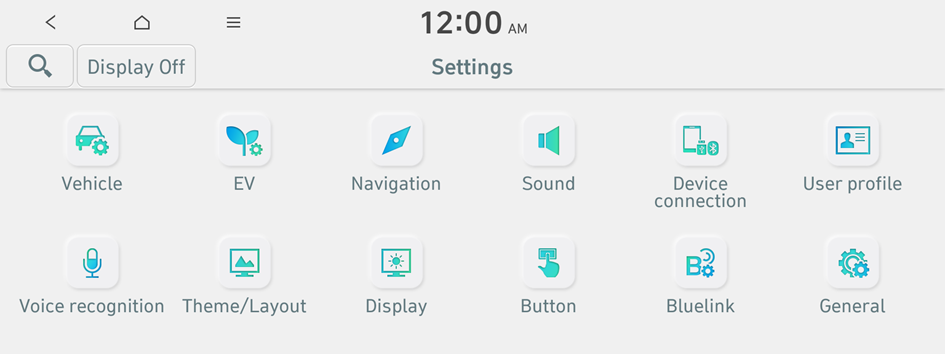
Type2
- The screen may differ depending on the vehicle model and specification.
- If the vehicle is type 2, it is possible to change the graphic theme to white or black. ▶ See "Graphic themes (if equipped)."
- Configure the settings required:
- Press
 ▶ Search for settings or press
  and enter a keyword to search for a setting item. You can also search for a setting item by voice.
Premium sound
You can change the system sound settings and apply various sound effects.
- Available sound effects may differ depending on the specifications of the amplifier.
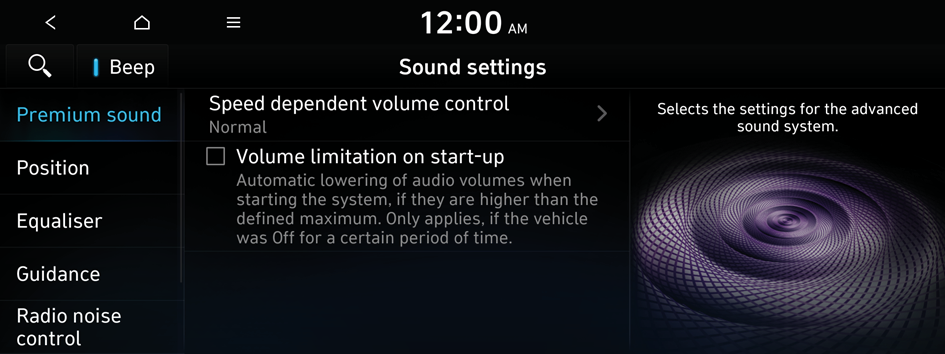
Speed dependent volume control
Automatically adjusts Audio volume according to vehicle speed.
Volume limitation on start-up
You can set to automatically decrease the audio volume to an adequate level when turning on the vehicle.
Adjusting the sound effect (if equipped)
Press the sound effect button on the media/broadcasting screen to adjust.
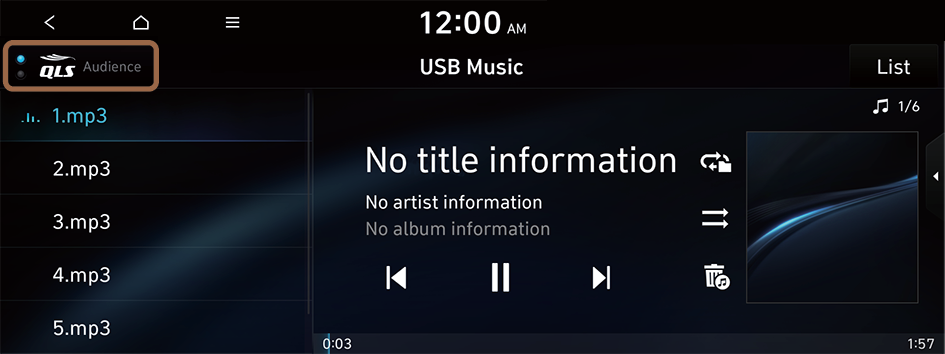
- Phone projection is linked with the BT sound effect settings.
- Sound effect can be set separately for each media/broadcasting mode.
- This function is not provided in the sound settings.
Centerpoint (if equipped)
BOSE's surround technology that upmixes stereo sources to deliver a vivid, immersive listening experience. Centerpoint delivers a more immersive soundstage as if you were in the center of the stage from every seat by properly positioning each instrument inside the vehicle with precise sound movement.
- This feature does not work for multi-channel (e.g., 5.1ch) media sources.
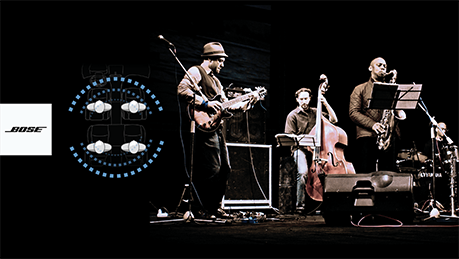
Centerpoint
QuantumLogic Surround (if equipped)
Delivers various sound effects by classifying the location of each instrument in the recorded sound source.
- • Reference: Delivers true sound focusing on original sound source.
- • Audience: Delivers an intimate concert experience where the boundaries of the vehicle seemingly disappear which feels like you are in the audience at a concert.
- • On stage: Delivers a surround-sound experience that puts listeners onstage with their favorite artists, placing individual instruments and musical elements throughout the cabin.
- Vehicles with QuantumLogic Surround level 2 only provide ON/OFF function.
Reference

Audience

On stage
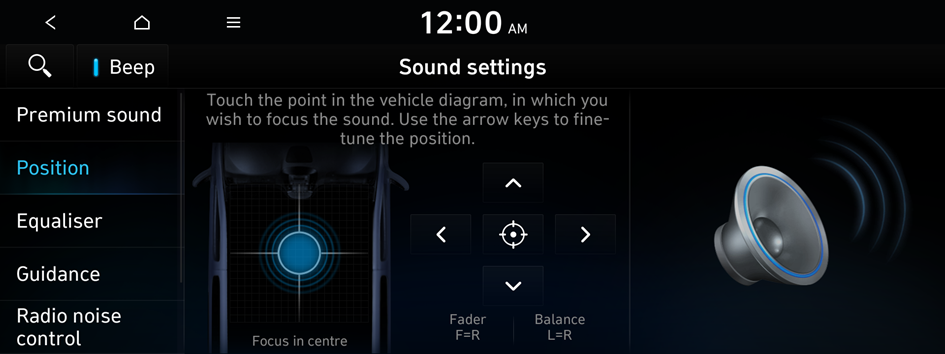
Position
You can select a position where sound is more audible in the vehicle. By pressing the desired point on the seat image or pressing the arrow buttons, you can finely adjust the position. To concentrate the sound to the centre of the vehicle, press  .
.
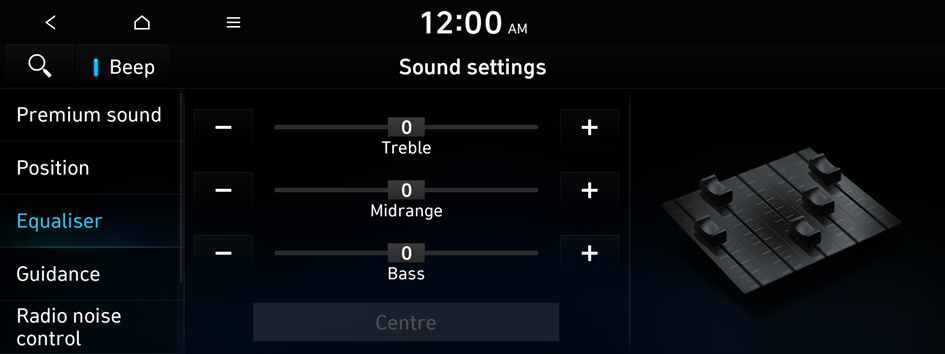
Equaliser
You can adjust the sound by adjusting the strengths (output levels) for each audio band: Bass, Midrange and Treble.
- To reset all audio settings to the default values, press Centre.
Guidance
Specify the system's guidance voice type, set a certain sound to override other sounds, and configure other guidance sound settings.
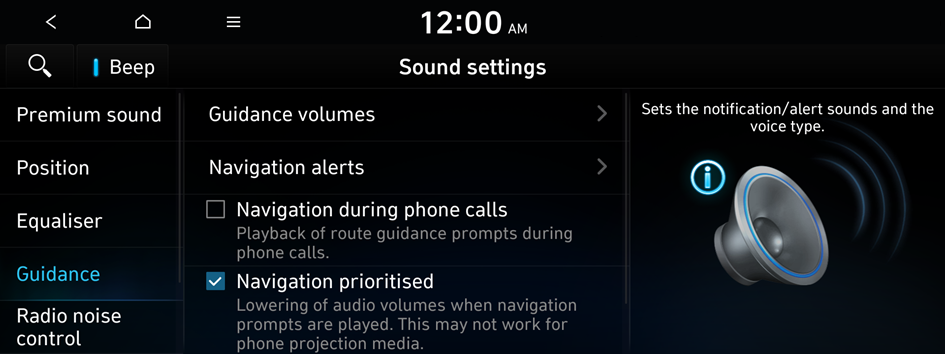
Guidance volumes
You can adjust the volume levels for individual system features or initialise all volume settings.
- To initialise all system sound settings, press Default.
Audible charging info (if equipped)
Audible information about the charging status when the vehicle starts charging.
- To turn off the Audible charging info, press Off.
Navigation voice guidance (if equipped)
You can configure the navigation voice guidance feature.
- • Mute voice guidance nearby destination: If the set destination is a registered location, voice guidance is turned off when the vehicle gets closer to the destination.
Navigation alert
You can set to activate drive assist features when needed for safety.
- • Camera alert settings: You can set when to receive alerts against and voice descriptions about traffic enforcement cameras.
- • Safety alerts: You can set the type of zone to get safety alerts for and speciyf the time (Daytime/Night) when to get safety alerts.
Navigation during phone calls
Even during a call, the navigation sound is heard.
Navigation prioritised
You can set to enable the navigation sound to be heard first when using both the navigation system and Radio/Media system.
Mute navigation guidance
Press the Mute button on the steering wheel when the navigation guidance is being output to set to mute the guidance volume for 10 seconds.
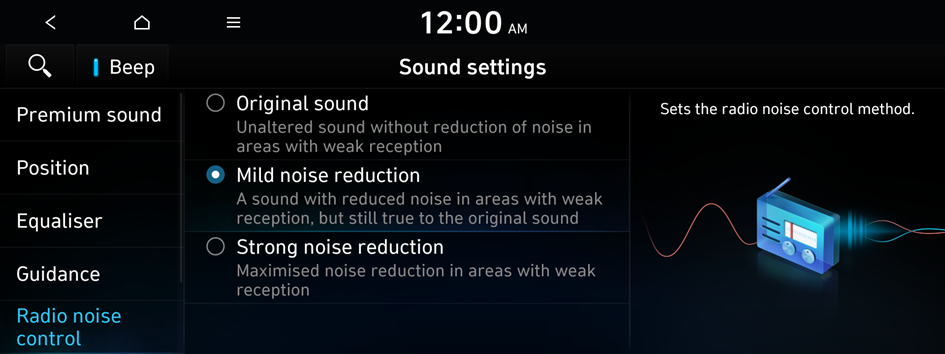
Radio noise control
You can customise sound quality when listening to FM radio by adjusting background noise of the original sound.
Driver assistance
You can set to give priority to the proximity warning feature and lower all other sounds when parking your vehicle.
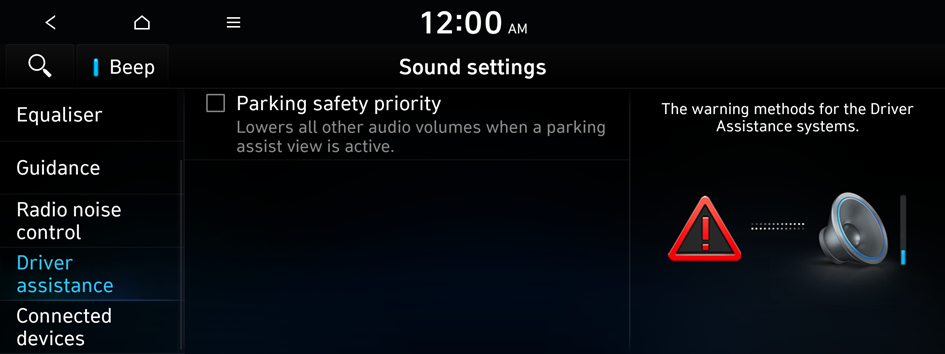
Parking safety priority
When warning sound is generated while parking, the audio volume decreases to make the sound audible.
Connected devices
You can adjust the volume of the phone projection and initialise all volume settings.
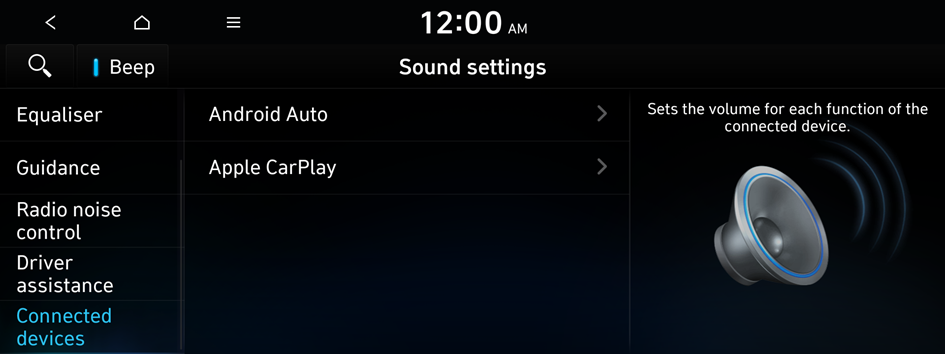
Android Auto
Vary the volume of your Android smartphone, connected to the system, depending on the function.
- To initialise all system sound settings of the phone projection, press Default.
- The sound effect settings button may appear on the screen depending on the amp specifications. ▶ See "Adjusting the sound effect (if equipped)."
Apple CarPlay
Vary the volume of your iPhone, connected to the system, depending on the function.
- To initialise all system sound settings of the phone projection, press Default.
- The sound effect settings button may appear on the screen depending on the amp specifications. ▶ See "Adjusting the sound effect (if equipped)."
Turning on/off the screen touch sound
To turn on or off the touch sound on the screen, press Beep at the top of the screen.


