Voice recognition
With the voice recognition function, you can access various functions of the infotainment system without manipulating the screen or buttons. This function prevents driver distraction and dangerous situations.
Use voice commands to access various functions easily.
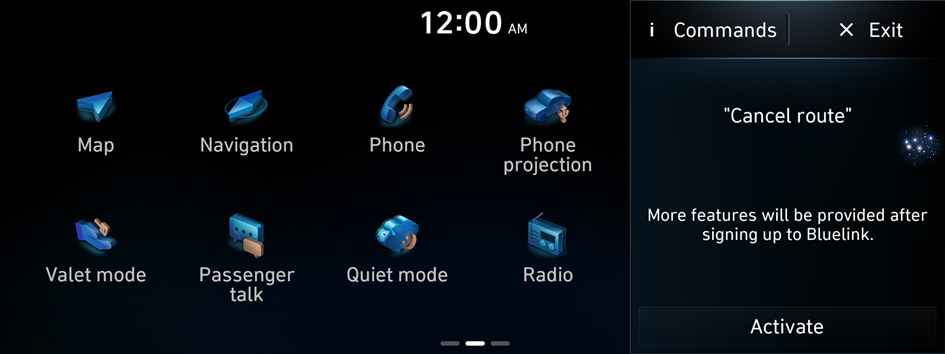
Type1
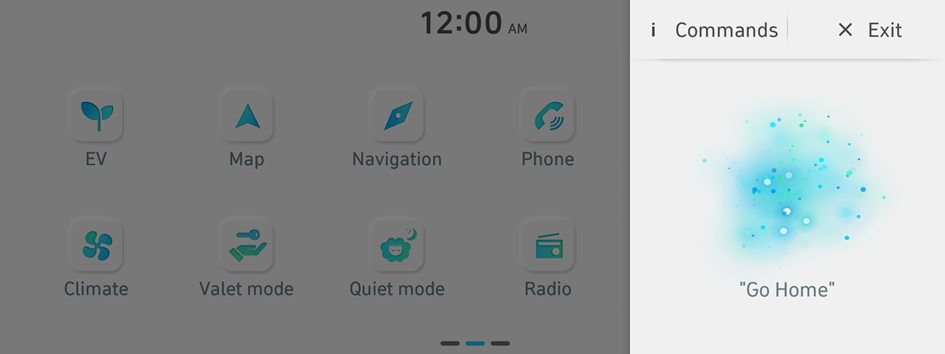
Type2
- The screen may differ depending on the vehicle model and specification.
- Note the following to ensure accurate recognition of your voice command.
- Press the Voice Recognition button. After a beep sound, say your voice command.
- Pronounce a command accurately and naturally, without pausing between words, like you would in a conversation.
- The microphone is located above the driver's head. Say your command while maintaining an upright posture. The microphone location may differ depending on the vehicle.
- Voice recognition is automatically ended when:
- You make or receive a call.
- The front or rear cameras operate (if equipped).
- A button is pressed to run another function (e.g., radio or media change).
- Rerouting or other unexpected action is made due to deviation from the route during guidance.
- Voice recognition may not work properly when:
- The sunroof or windows are open so the wind is strong.
- The fan speed of the air conditioner or heater is high.
- The vehicle is passing through a tunnel.
- The vehicle is driving on an unpaved road and its noise and vibration are loud.
- Noise is loud due to a heavy rain or storm.
- When using speech recognition some commands may not be supported depending on the vehicle model and type.
- Special characters included in a contact are not recognised by voice (e.g., School_John, John!).
- Not all languages may be supported depending on the region. Some commands may not be supported depending on the set language.
- Some functions are available only if you are subscribed to the Bluelink service.
- If the vehicle is type 2, it is possible to change the graphic theme to white or black. ▶ See "Graphic themes (if equipped)."
Using the voice recognition function
- Press the Voice Recognition button on the steering wheel. After a beep sound, say your voice command.
- If you press the Voice Recognition button when the system is waiting for a voice command, the standby time is extended.
- If you press the Voice Recognition button in the middle of voice guidance on the voice recognition function, the voice guidance is skipped.
- When a beep sound is heard, say a voice command as required (e.g., radio). ▶ See "Available voice commands" or "Viewing available voice commands."
- Some functions may require additional commands.
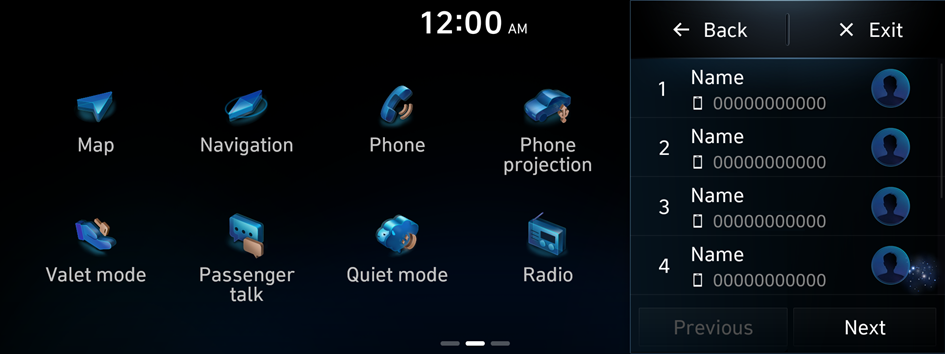
- If multiple search results are found, follow the on-screen instructions to say the number you want to run.
Ending voice recognition mode
To end the voice recognition, perform one of the following methods:
- • In standby mode for voice recognition, say "Exit".
- • On the voice recognition screen, press Exit.
- • On the steering wheel, press and hold the Voice Recognition button.
Using voice recognition via phone projection
Use the voice recognition function on your smartphone via phone projection. ▶ See "Using the phone projection function."
Adjusting the voice guidance volume
When voice recognition mode is on, you can adjust the volume by using either the volume button on the steering wheel or the volume knob.
Viewing available voice commands
Turn on voice recognition mode and then say "Commands" to view all commands that are available for use.
- The All functions screen can be controlled by touch only and does not recognise voice commands.
- To redirect to the Voice Recognition screen, press the Voice Recognition button.
- Press Exit to end voice recognition.
- Some functions may not be supported depending on the vehicle's options.
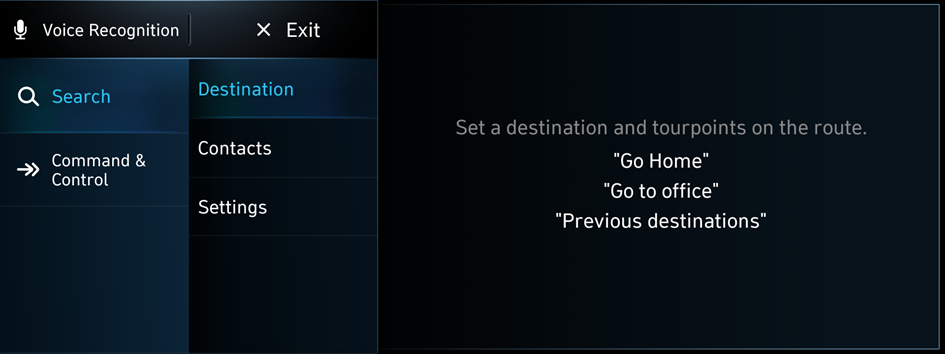
Available voice commands
For more voice commands, activate voice recognition and say "Commands".
Function | Description | Command |
|---|---|---|
Call commands | Make a phone call to a contact saved in your contact list. | Call <name> Call <name> at Home |
| ||
SMS commands | Send text messages. | Send message Send message to <name> |
| ||
Search commands | Search the settings menu. | Search settings |
Navigation commands | Run navigation, and set a destination or waypoints. | Find <POI> Go Home/Go to Office Recalculate |
| ||
Radio/Media commands | Run the radio/media function. | FM <87.5 to 108.0> AM <522 to 1620> Media Music |
Rear-seat function commands | Run the rear-seat function. | Quiet Mode Quiet Mode On |
| ||
Vehicle control commands | Control air conditioner, heater, or other vehicle functions. | Heating On/Off Air conditioning On/Off Seat warmer On/Off Seat ventilation On/Off |
| ||
Other commands | Indicates the command that is available in special cases. | Help Exit |
| ||


