Configuring the user profile settings
You can additionally set profiles for each driver after First Run Setup.
- On the All Menus screen, press Setup ▶ User Profile.
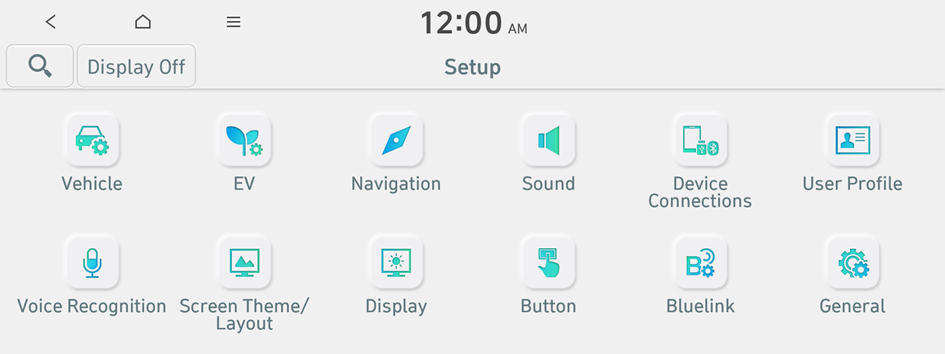
Type 1
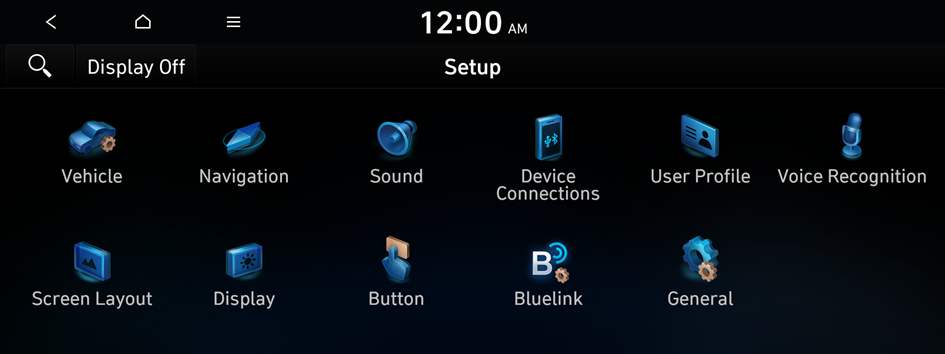
Type 2
- The screen may differ depending on the vehicle model and specifications.
- If the vehicle is type 1, it is possible to change the graphic theme to white or black. ▶ See "Graphic Themes (if equipped)."
- Press the user to change its profile.
The User Profile Settings screen appears.
- Press
 ▶ Search for Settings or press
  and enter a keyword to search for a setting item.
 - Press Change User to switch to another user's profile.
- When you log in as guest, you cannot set the profile items additionally. To set a different profile, select another user.
Profile Settings
You can specify the details and operation environment for a registered user.
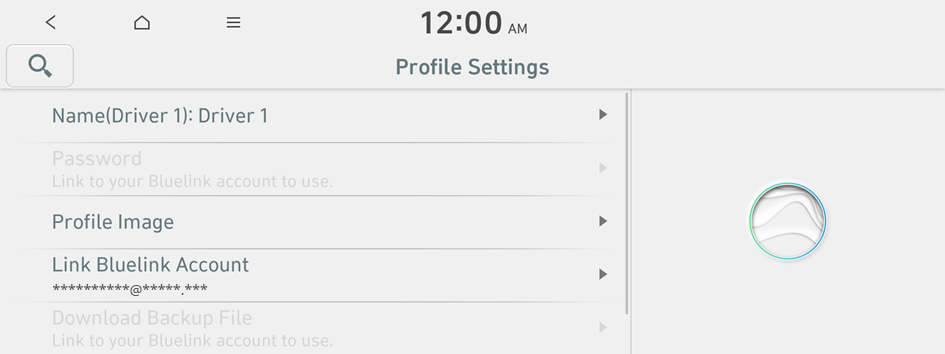
- The screen may differ depending on the vehicle model and specifications.
Name
You can specify the name of the user to display on the profile.
Password
You can set password to use for profile login.
- To use this feature, connect your Bluelink account.
Profile Image
You can specify the image to display on the user profile.
Link Bluelink Account
You can use various services and convenient management features when linked to the registered Bluelink service.
- Subscribe to Bluelink to check the function. ▶ See "Subscribing to the service."
Link Digital Key (Smartphone) (if equipped)
When the registered digital key (stored in a smartphone) is synced, you can log in the system by using the phone.
- To register a digital key by using your smartphone, on the All Menus screen, press Setup ▶ Vehicle ▶ Digital Key ▶ Smartphone Key.
Download Backup File
Loads the backup files saved on the server.
Delete Profile
All stored data and profile settings will be lost and the system will be reset.


