Viewing VICS Information
You can view VICS information, such as real-time traffic conditions, including ongoing road work or traffic accidents, and information on parking garages/lots.
Searching traffic information
You can view real-time traffic information.
- On the Navigation Menu screen, press VICS Information.
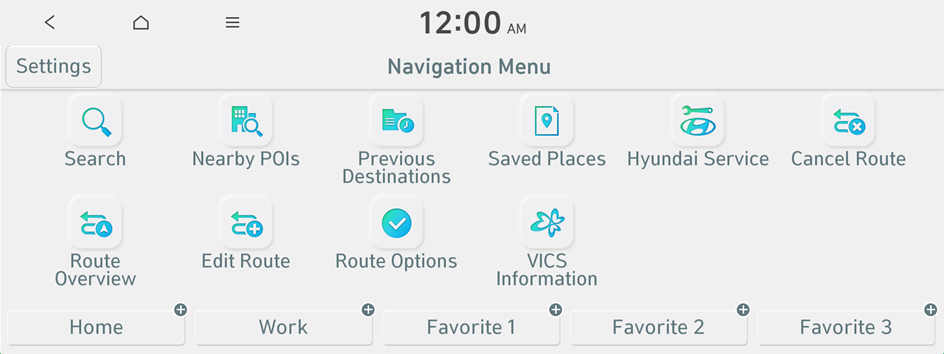
Type 1
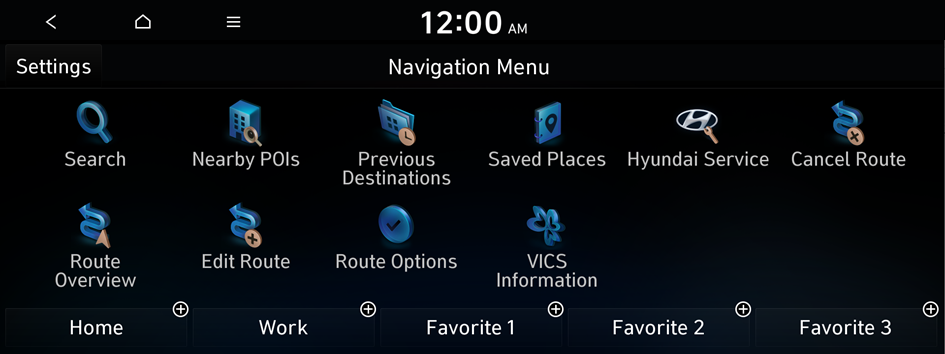
Type 2
- Available icons and their arrangement may differ depending on the vehicle model and specifications.
- If the vehicle is type 1, it is possible to change the graphic theme to white or black. ▶ See "Graphic Themes (if equipped)."
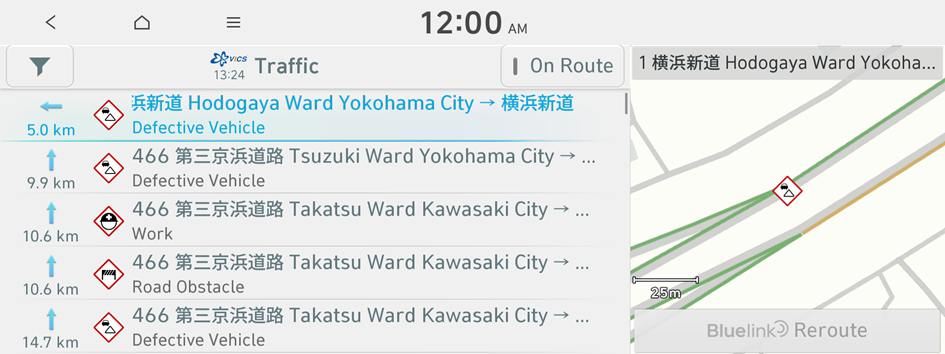
- Press Traffic.
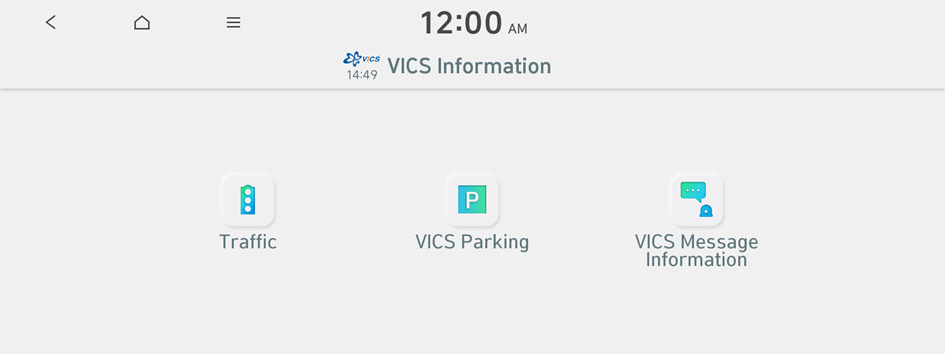
- Select an item from the real-time traffic information list and see the details.
- To reroute using recent traffic information while in guidance, press Reroute.
- To see traffic information along the current route or to see all available traffic information, press On Route.
- To select the type of traffic information, press
 .
.
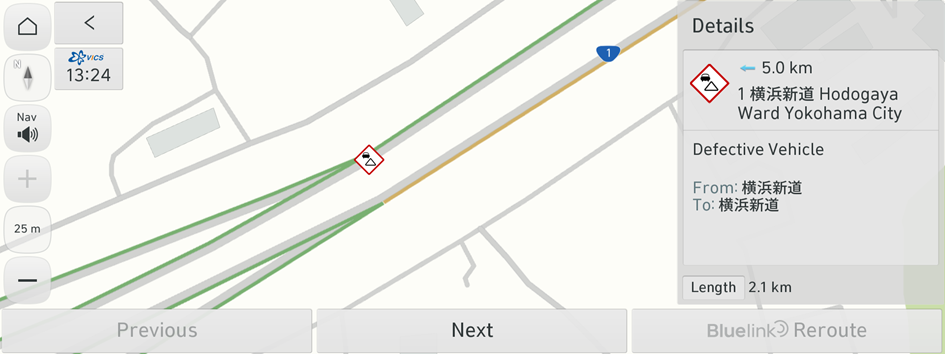
- Check the detailed traffic information.
Searching parking garages/lots
You can easily search for the locations of parking garages/lots.
- On the Navigation Menu screen, press VICS Information.
Type 1
Type 2
- Available icons and their arrangement may differ depending on the vehicle model and specifications.
- If the vehicle is type 1, it is possible to change the graphic theme to white or black. ▶ See "Graphic Themes (if equipped)."
- Press VICS Parking.
- Select a parking garages/lot from the list.
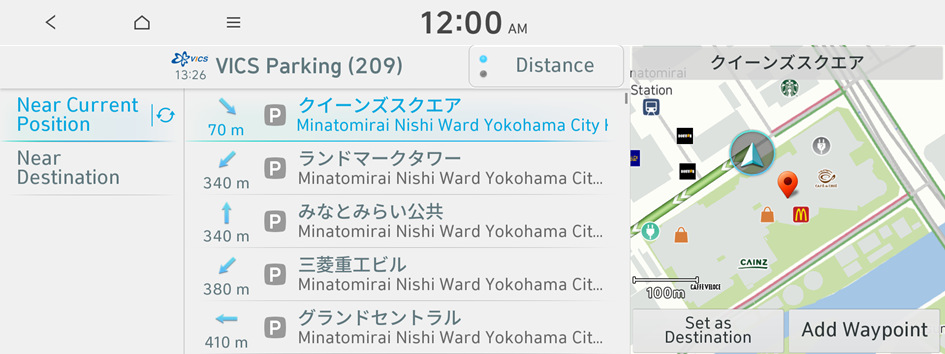
- On the map screen, press
 .
.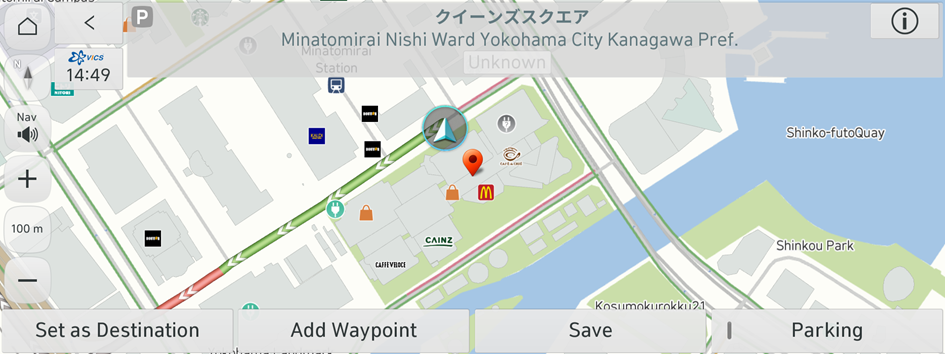
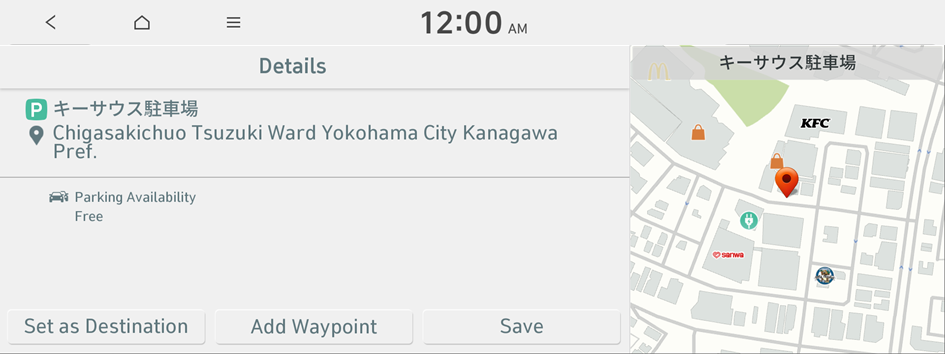
- View details on parking garages/lots.
Viewing Emergency Messages
You can view emergency alert or warning messages.
- On the Navigation Menu screen, press VICS Information.
Type 1
Type 2
- Available icons and their arrangement may differ depending on the vehicle model and specifications.
- If the vehicle is type 1, it is possible to change the graphic theme to white or black. ▶ See "Graphic Themes (if equipped)."
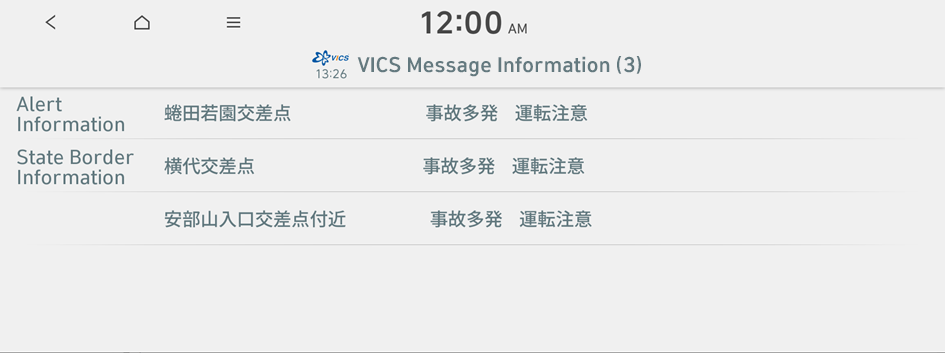
- Press VICS Message Information.
- Displays the Emergency Warnings information.