Basic Controls
Turning the System on
- The system is automatically on when the vehicle engine starts.
When the system is on, the screen shows the logo of auto maker and the user precautions.
- Press [Language] to change the language of system display. Reference “Language” for details.
- Press [Confirm].
|
,Reference |
|
Turning the System off.
Press and hold the power button on the head unit to turn off the system.
Press the power button on the head unit to turn on the system.
|
,Reference |
|
AV off
Press power button on the head unit when the AV is on.
AV on
Press power button on the head unit when the AV is off.
Volume Control
Radio/Media Volume Control
When radio/media is in play, turn [VOL] button to left/right to control the volume.
Bluetooth Audio Volume Control
When bluetooth audio is in play, turn [VOL] button to left/right to control the volume.
Voice Recognition Guide Volume Control
When voice guidance is in play, turn [VOL] button to left/right to control the volume.
Bluetooth Audio Volume Control
During bluetooth phone call, turn [VOL] button to left/right to control the volume.
Bluelink Audio Volume Control
During bluelink phone call, turn [VOL] button to left/right to control the volume.
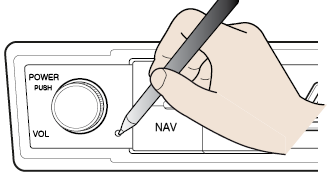
System Reset
System reset is a feature to recover from the production malfunctions.
Press reset button.
(It is recommended to use a clip or pin when initializing the system.)
|
|
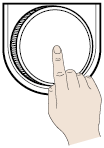
Using Controller
Rotate controller to left/right or use 8-direction Joystick to switch or select the menu.
|
Controller |
Details |
|
|
Rotate controller to left/right to switch the menu. |
|
|
Push controller to up/down/left/right/diagonal directions to switch the menu. |
|
|
Press controller to select the menu. |


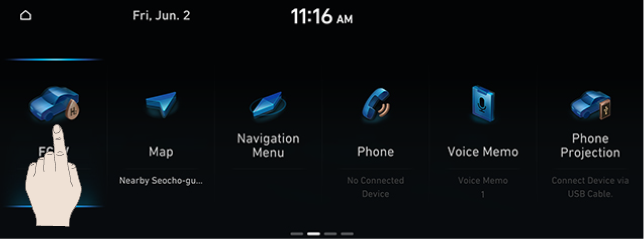
How to Use Touch Screen
Press the desired menu on the screen to select a menu.
|
|
|
,Reference |
|
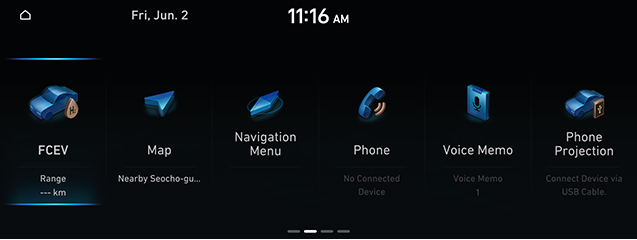
Basic Controls of HOME Screen
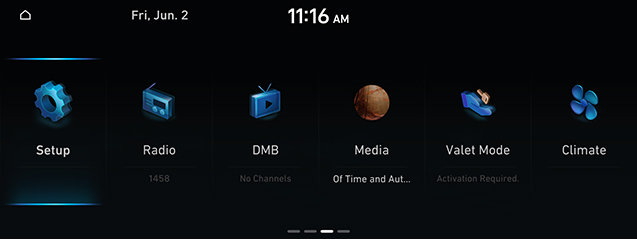
- Press [
 ]. The home screen opens.
|
|
|
|
|
|
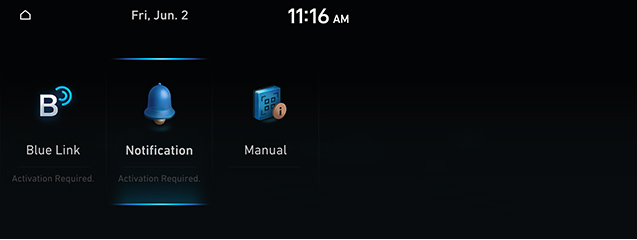
- Select a desired menu on home screen.
- Follow-up controls are available for the selected menu.
Split Screen
You can set to display a split screen on the screen.
- Press [Menu] > [Split Screen] on pop-up menu in each mode. The split screen appears on the right.
|
|
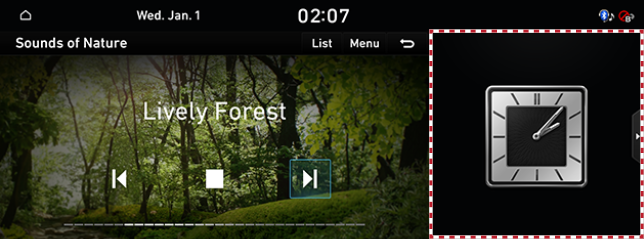
- Drag the split screen up or down to select the desired item.
|
,Reference |
|
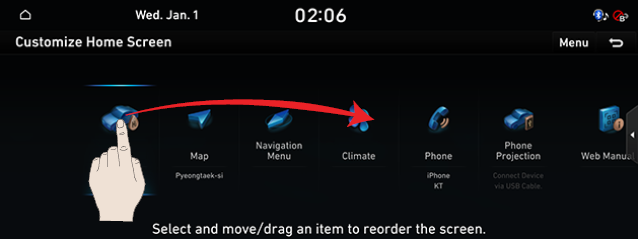
Editing HOME Screen
Press and hold the menu icon on the home screen to change the location.
- Press and hold the menu icon on the home screen.
|
|
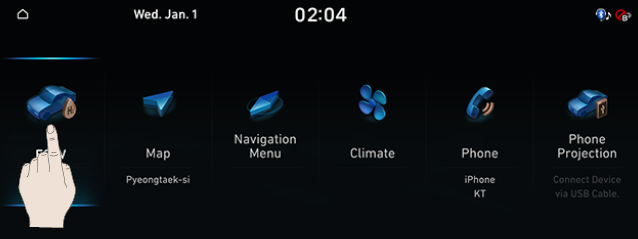
- After the pressing and holding, drag the icon to left or right to change the position.
|
|
- Press [g].