Using the fuel cell electric vehicle menu (FCEV only)
View driving information and energy information, and use various FCEV-specific features.
On the Home screen, press FCEV.
Fuel Cell Electric Vehicle (FCEV) screen
The Fuel Cell Electric Vehicle (FCEV) screen provides the following features and information:
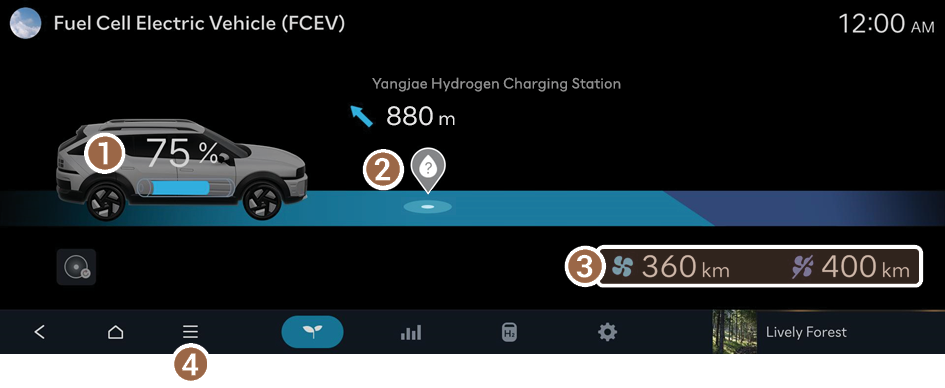
- View the current hydrogen tank level.
- Can search for nearby charging stations.
- The details of charging stations displayed on the map screen may not match the actual information.
- View the distance to empty for the current climate control settings.
- The details of drivable range displayed on the map screen may not match the actual information.
- Displays the list of menus.
- • Hydrogen Stations: You can search for nearby charging stations.
- • Online Manual: View the online manual by scanning the QR code with your mobile phone.
Searching for nearby charging stations
If the distance to the set destination exceeds the drivable range, you can use the function that guides you along a route with charging stations within the drivable range.
- Depending on the third-party service provider, basic information or status information on some charging stations may differ.
- Perform any of the following methods:
- • On the Fuel Cell Electric Vehicle (FCEV) screen, press the Hydrogen Station icon.
- • On the Home screen, press Map ▶
 ▶ Nearby Info. ▶ Nearby POIs ▶ Hydrogen Stations.
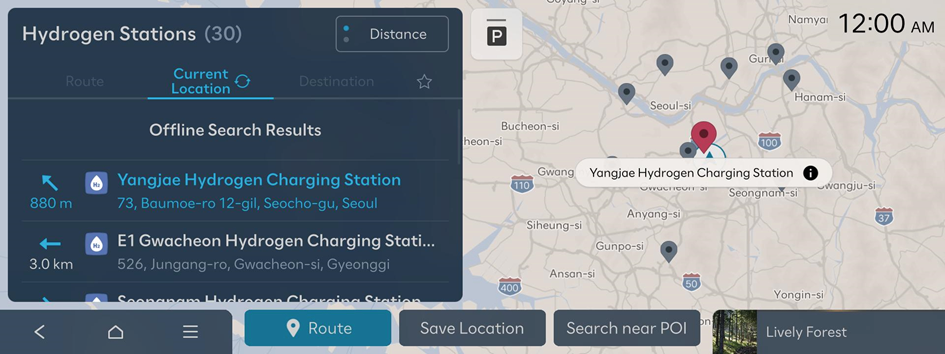
- Specify the range of search from the left of the screen, and then select a charging station from the right.
- If you press
 at the top of the screen, the locations of the charging stations (if equipped) and/or parking garages/lots on the Map screen are displayed as icons.
- If you press
- Check the location of the destination and then press Route.
Energy flows screen
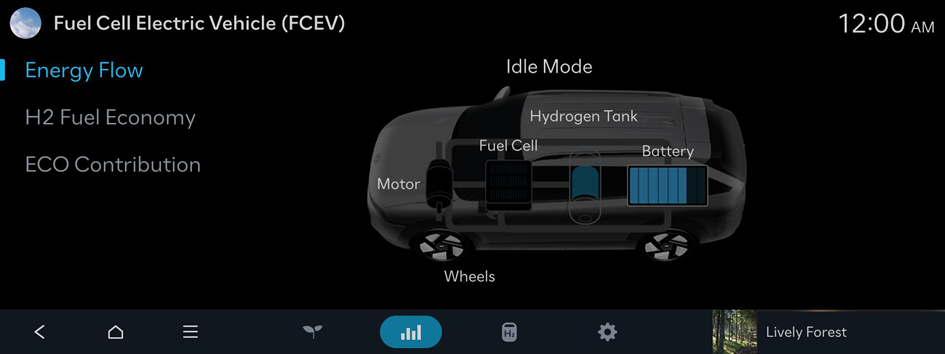
Energy flows | Description |
|---|---|
 | Idle Mode |
 | Idle Charging Mode |
 | Normal (Assist) Mode |
 | Normal (Charging) Mode |
 | Battery Mode |
 | Regenerative Braking Mode |
 | Fuel Cell Mode |
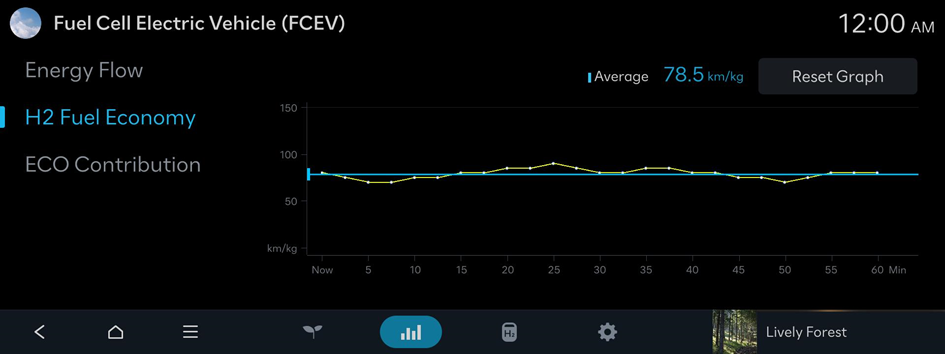
Hydrogen Fuel Efficiency screen
View the screen that shows your FCEV's hydrogen fuel efficiency.
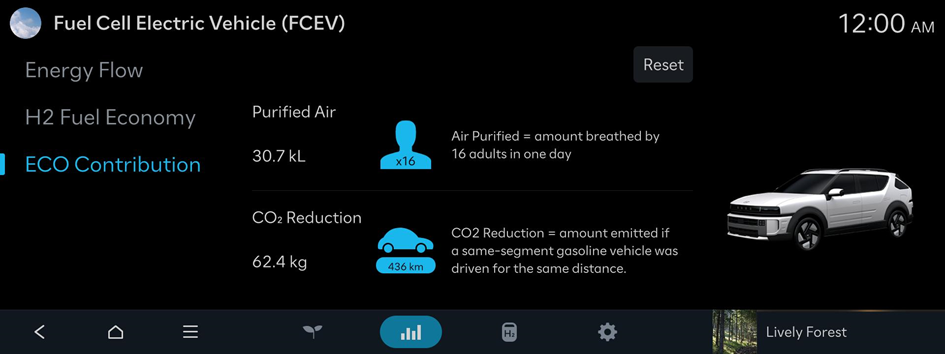
Environmental Contribution Level screen
View the screen that shows your FCEV's environmental contribution level.
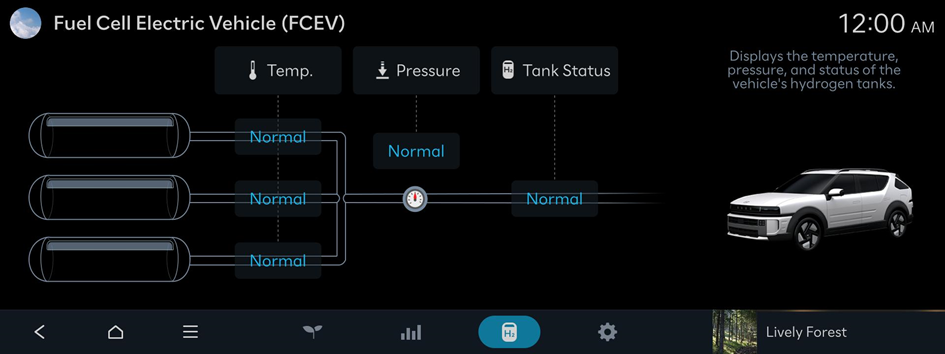
Hydrogen Tank Screen
Displays the temperature, pressure, and status of the vehicle's hydrogen tanks.
Configuring the Fuel Cell Electric Vehicle (FCEV) settings
Configure settings for the user convenience features available in your FCEV.
- Available settings may differ depending on the vehicle model and specifications.
Utility Mode
Uses the high-voltage battery to power electronic devices, such as the Infotainment system, Climate Control, and interior lights, when parked for a long time or while camping.
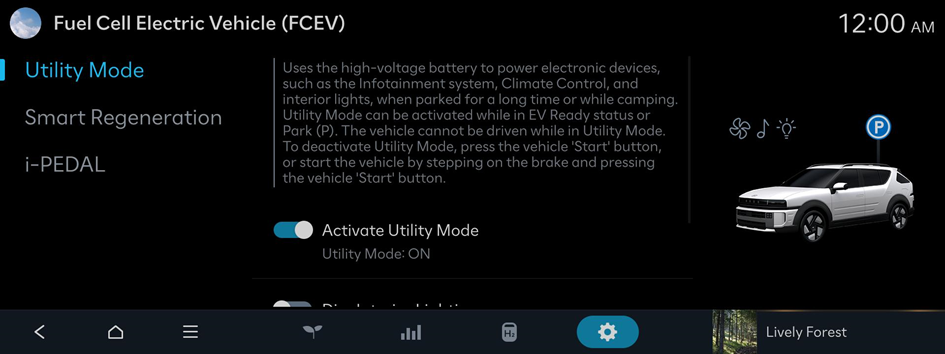
- To deactivate Utility Mode, press the vehicle 'Start' button, or start the vehicle by stepping on the brake and pressing the vehicle 'Start' button.
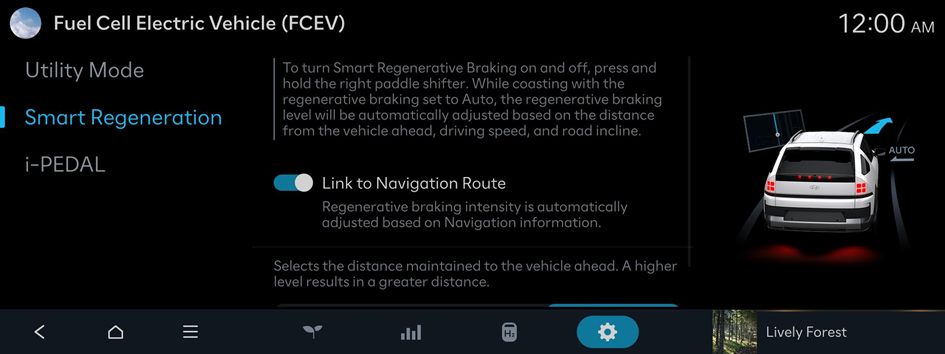
Smart Regeneration
To turn Smart Regenerative Braking on and off, press and hold the right paddle shifter. While coasting with the regenerative braking set to Auto, the regenerative braking level will be automatically adjusted based on the distance from the vehicle ahead, driving speed, and road incline.
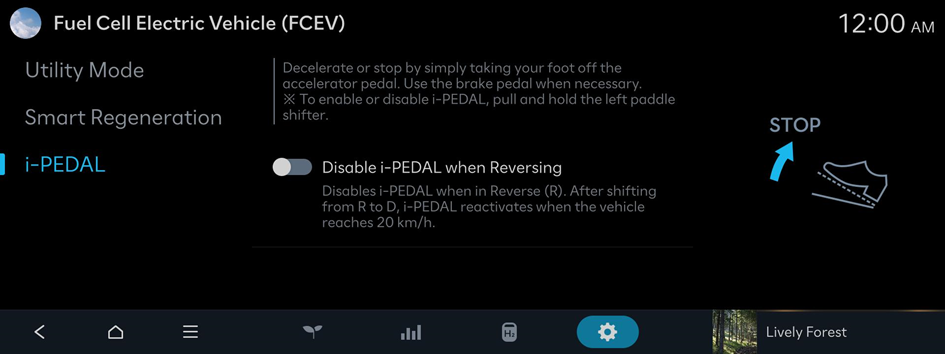
i-PEDAL (if equipped)
Decelerate or stop by simply taking your foot off the accelerator pedal. Use the brake pedal when necessary.