Configuring the sound settings
Change the sound settings such as speaker volume and sound effects.
- Available settings may differ depending on the vehicle model and specifications.
- Some functions may not be available depending on the infotainment system and amplifier specifications on the vehicle.
- On the Home screen, press Setup ▶ Sound.
The sound settings screen appears.
- Configure the settings as required.
- Press
 on the screen or press the button on the control panel, enter a search term, and then select the item to run.
Premium Sound (if equipped)
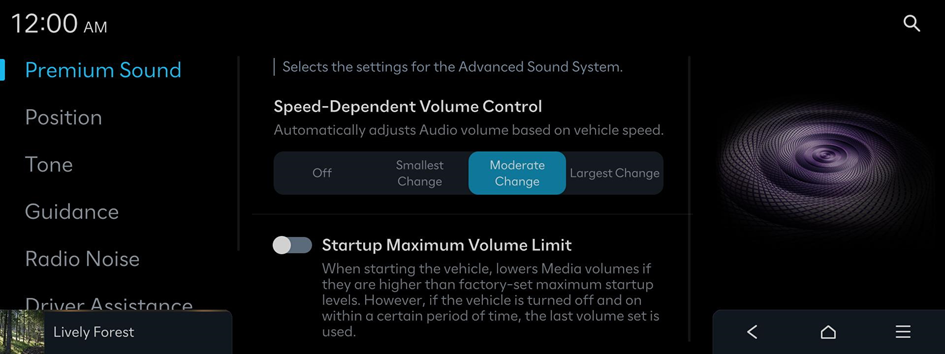
Selects the settings for the Advanced Sound System.
Dynamic Speed Compensation (if equipped)
Monitors the vehicle speed and automatically adjusts aspects of the music to ensure a consistent listening experience.
Speed-Dependent Volume Control (if equipped)
Automatically adjusts Audio volume based on vehicle speed.
Startup Maximum Volume Limit
When starting the vehicle, lowers Media volumes if they are higher than factory-set maximum startup levels. However, if the vehicle is turned off and on within a certain period of time, the last volume set is used.
Sound Focus (if equipped)
Sound Focus allows users to change to their preferred listening experience with Reference mode, Surround mode, and Cinema mode.
- • Reference: Delivers true sound focusing on original sound source, providing an equal sound experience for all passengers in the car.
- • Surround: Provides a 10-step surround effect enabling customized surround sound with an equal sound experience for all passengers in the car.
- • Cinema: Provides an experience comparable to a movie theater, with voices placed in the middle of the dashboard, wide sound staging, and impressive deep bass in the cabin.
- This feature does not work for multi-channel (e.g., 5.1ch) media sources.
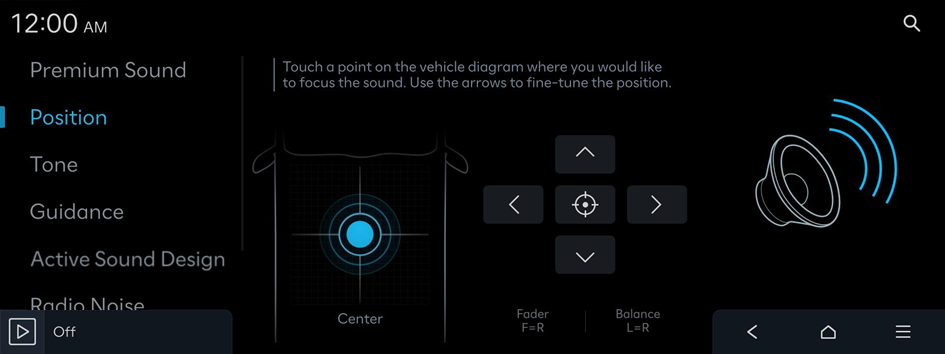
Position
Touch a point on the vehicle diagram where you would like to focus the sound. Use the arrows to fine-tune the position.
Beosonic (if equipped)
Beosonic allows you to easily adjust the sound to your preference.
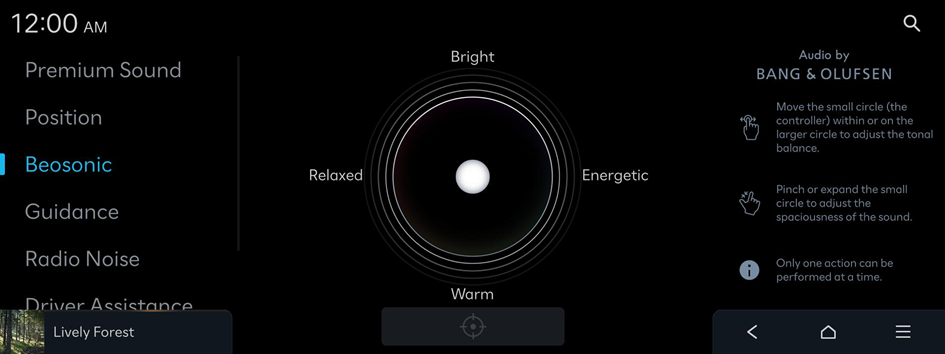
- To reset all audio settings to the default values, press
 .
. - The spaciousness adjust in some SOUND FOCUS sound effect (surround/cinema).
- The spaciousness does not set for multi-channel (e.g., 5.1ch) media sources.
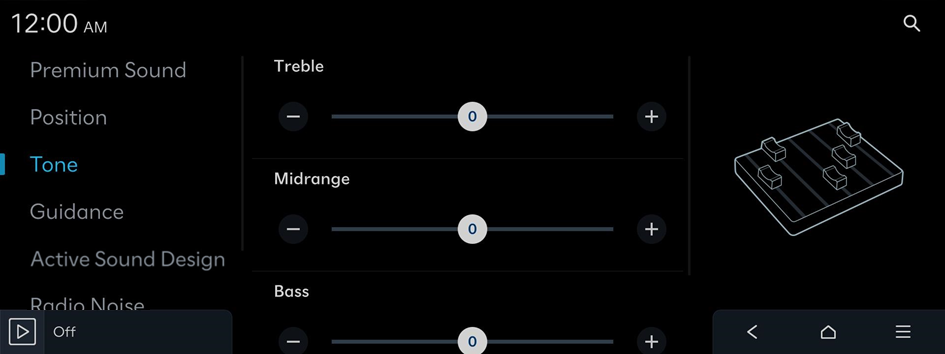
Tone
Adjust the sound by adjusting the strength (output level) for each audio band: Bass, Midrange, and Treble.
- To reset all audio settings to the default values, press Center.
Guidance
Sets various notification/alert sounds and the voice type.
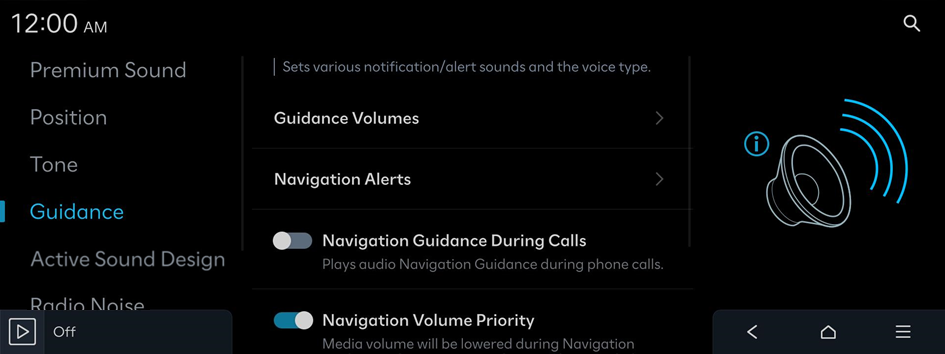
Guidance Volumes
Adjust the volume levels for individual system features or initialize all volume settings.
- To initialize all system sound settings, press Default.
Navigation Alerts
Set the Safety Alert camera options.
- • Camera Alert Distance: Sets Camera Alert Distance.
- • Camera Type: Sets the camera type(s) for which alerts will be provided.
- • Safety Alerts: Sets the guidance for Safety Alerts.
Navigation Guidance During Calls
Plays audio Navigation Guidance during phone calls.
Navigation Volume Priority
Media volume will be lowered during Navigation guidance. This may not apply to media provided from Phone Projection apps.
Mute Navigation Guidance
While Navigation guidance is playing, pressing the Mute button on the steering wheel will mute the guidance for 10 seconds.
Welcome Sound (if equipped)
Provides an audible tone when the cluster turns On or Off.
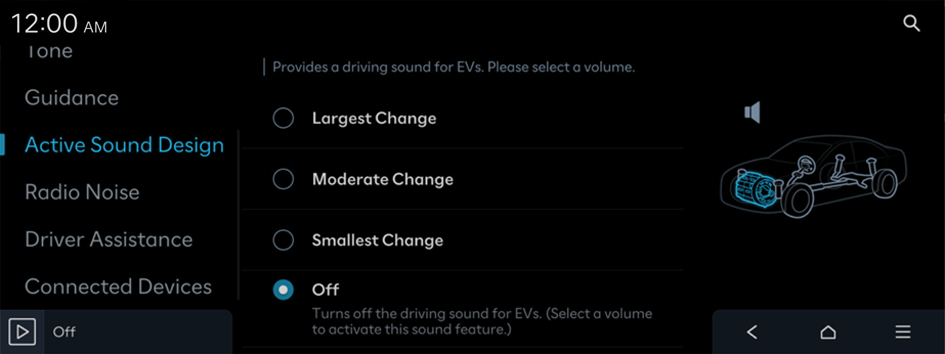
Active Sound Design (if equipped)
Provides a driving sound for EVs. Please select a volume.
- Available settings may differ depending on the vehicle model and specifications.
N Active Sound+ (if equipped)
Selects the preferred N Active Sound+ settings.
- • Ignition: Enhance the connection between the driver and vehicle with the N RPM simulation of an internal combustion engine.
- • Evolution: Experience the emotions evoked by the evolutionary sound of a futuristic, high-performance electric vehicle.
- • Supersonic: Experience the powerful thrust sound inspired by fighter jets.
- • OFF: Set N Active Sound+ on silent.
- Available settings may differ depending on the vehicle model and specifications.
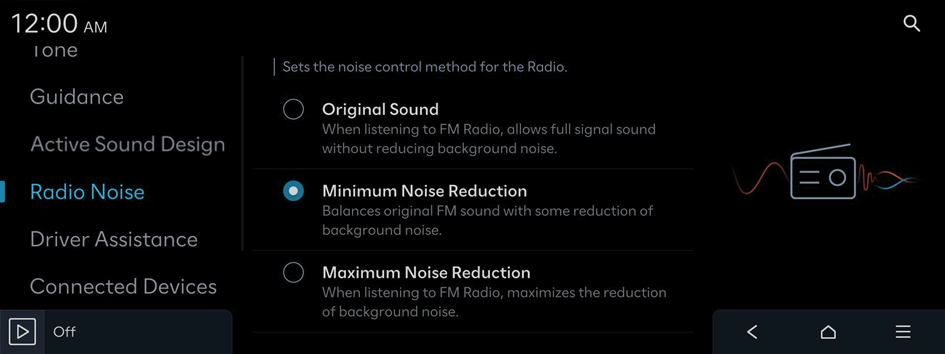
Radio Noise
Sets the noise control method for the Radio.
Driver Assistance
Sets the warning method(s) for the Driver Assistance systems.
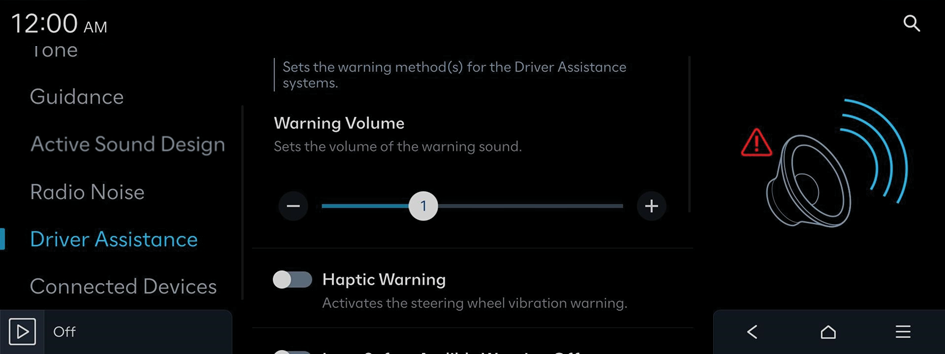
Warning Volume
Sets the volume of the warning sound.
Haptic Warning (if equipped)
Activates the steering wheel vibration warning.
Forward Attention Warning Sound (if equipped)
Turns the Forward Attention Warning Sound on/off.
Lane Safety Audible Warning Off (if equipped)
Turns off the audible warning used for the Lane Safety feature if both the audible warning sound and the haptic warning are on.
Lane Safety Warning Sound (if equipped)
Enables Lane Safety Warning Sound. The warning sound cannot be disabled if the haptic warning is off.
Blind-Spot Safety Warning Sound (if equipped)
Enables the Blind-Spot Safety Warning Sound.
Driving Safety Priority
Lowers all other audio volumes when the Driving Safety system sounds a warning.
Parking Safety Priority
Lowers all other audio volumes when the Parking Assist view is active.
Connected Devices
Sets the volume of each function when using the selected Phone Projection app.
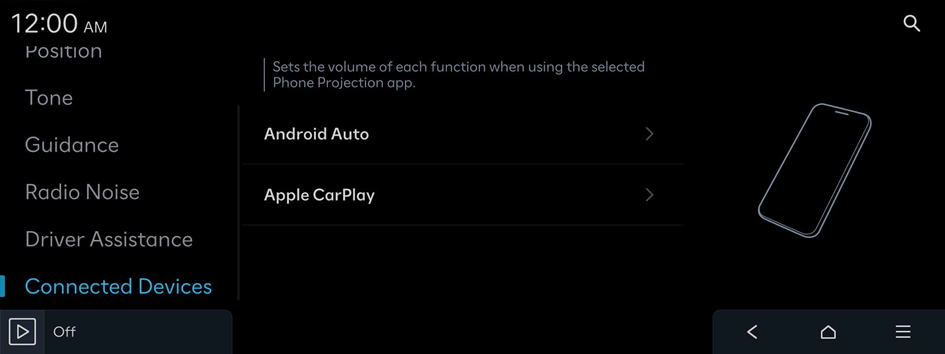
Android Auto
Adjusts the volumes of the Android Auto features.
- To initialize all system sound settings for phone projection, press Default.
Apple CarPlay
Adjusts the volumes of the Apple CarPlay features.
- To initialize all system sound settings for phone projection, press Default.


