Using the entertainment mode (if equipped)
Subscribe to a streaming data plan from the Bluelink Store, and play the content of your choice.
- To use the service, make sure you install the Bluelink App on your smartphone and sign up for the Bluelink Service. Use either Google Play Store or App Store (depending on your smartphone model) to download and install the Bluelink App and sign up for the Bluelink Service. ▶ See "Subscribing to the service (if equipped)."
- To use the service, make sure your user profile is linked to your Bluelink account. To link your user profile to your Bluelink account, press Settings ▶ User profile from the Home screen.
- Perform any of the following methods:
- • On the Home screen, press Entertainment.
- • On the Media Home screen, press Entertainment.
- Select the desired media content.
Entertainment screen
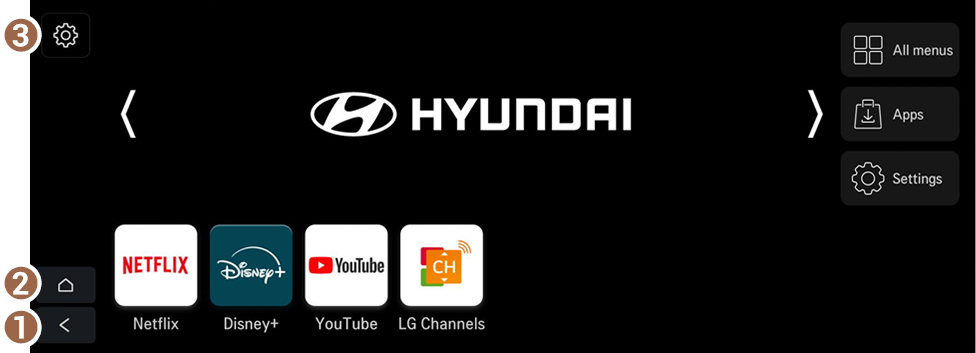
- Return to the previous screen.
- Displays the Home screen.
- The list of menu items appears.
- • Online manual: View the online manual by scanning the QR code with your mobile phone.
- Available features or icons are subject to change according to the policy of the content platform service provider you are using.
- If you change the aspect ratio, caption and some other areas of the screen may appear cropped.
- How the display works may differ, depending on the country, vehicle specs, purchased optional features, and installed software version.
- The sound effect settings button may appear on the screen depending on the amplifier. ▶ See "Adjusting the sound effect (if equipped)."
- The quality of service may be reduced, depending on technical issues specific to content platform.
- The service may not be available if the vehicle navigation system is not working normally due to having been modified, removed/reattached, damaged, poorly serviced, or for any other reason.
- Access to the service may fail due to a temporary communication failure.
- Use of the service may be limited in radio shadow areas.

Warning
The video screen is disabled while driving to ensure safety. To watch the video, first be sure to you stop the vehicle. Content playback is possible after shifting to "P" (Park).


