Using the Route Menu (If equipped)
Stop guidance/Resume guidance
If you want to stop the route guidance when a route is active, press [Stop guidance] on the map screen.
If you want to resume the route guidance when a route is inactive, press [Resume guidance] on the map screen.
Route options
You can modify various route options according to your needs.
- Press [NAV] > [Route options].
|
|
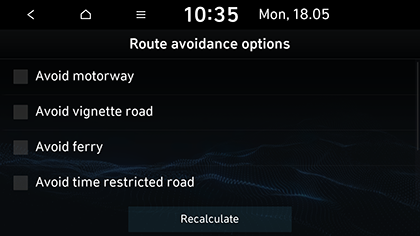
- Set the desired options.
- Motorway, Vignette road, Ferry, Time restricted road, Toll road, Tunnel
- [
 ]: Calculates the route including the Motorway, Vignette road, Ferry, Time restricted road, Toll road or Tunnel.
 - [
 ]: Calculates the route avoiding the Motorway, Vignette road, Ferry, Time restricted road, Toll road or Tunnel.
|
,Note |
|
The options set by user may not be supported depending on condition. |
Plan tour
The plan tour allows you to travel through the searched routes by editing the current route. Tourpoints can be added/deleted/edited and the order can be changed.
- Press [NAV] > [Plan tour].
|
|
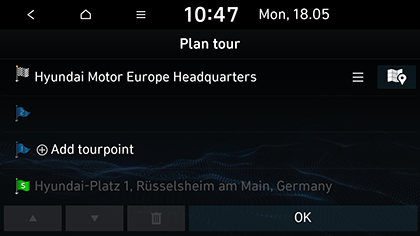
- Press [Add tourpoint].
- Add the tourpoint through the destination search function.
- Press [OK].
|
|
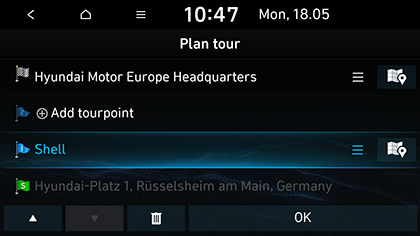
- If you want to add a tourpoint, follow steps 2-4 again.
- Press [OK] > [Start guidance].
- Press [NAV] > [Plan tour].
- Press the desired item from the list.
- Drag it to the desired position, or press [w/s].
- Press [OK] > [Start guidance].
Deleting plan tour
- Press [NAV] > [Plan tour].
- Press the desired item from the list.
- Press [
 ].
]. - Press [OK] > [Start guidance].
Viewing map information
- Press [NAV] > [Plan tour].
- Press the desired item from the list.
- Press [
 ].
].
Route overview
You can check the entire route between your current location and your destination.
- Press [NAV] > [Route overview].
|
|
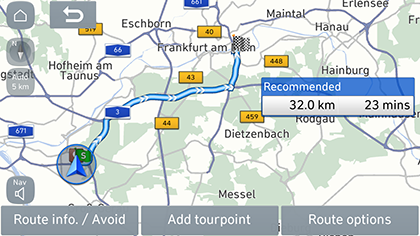
- Press the desired items.
- [Route info. / Avoid]: Displays the route information and selects the street to avoid.
- [Add tourpoint]: Edits the route.
- [Route options]: Changes the route options.