Configuring the vehicle settings (if equipped)
You can configure the functions for driving and related environments.
- Available settings may differ depending on the vehicle model and specifications.
- On the All Menus screen, press Setup ▶ Vehicle.
The vehicle settings screen appears.
- Configure the settings required:
- Press
 ▶ Search for Settings and enter a keyword to search for a setting item.
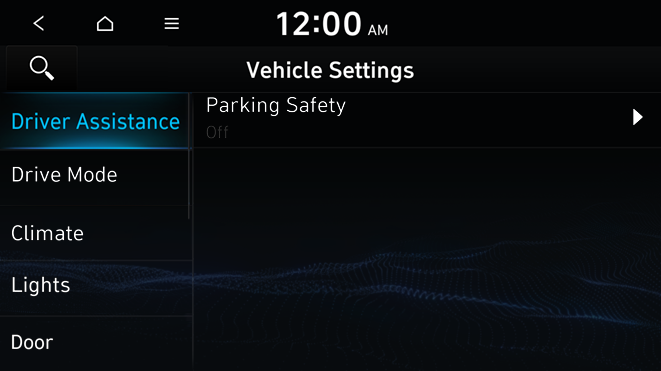
Driver Assistance (if equipped)
You can set to use various systems that assist the driver for safety.

Warning
- • Be sure to always check the road conditions while driving. The driving assist system helps you drive safely and conveniently. Relying solely on the driving assist system may cause violation of traffic rules and regulations, resulting in an accident.
- • Be sure to control the vehicle by your judgment and keep traffic regulations for safety. When the driving assist system is active, drive the vehicle with keeping eyes forward and checking the surroundings.
- • Not all driving assist system warnings or sub-features are necessary when they are active, and they do not replace the driver discretion under any circumstances. Stay focused on the road while driving.

Caution
Be sure to always check the vehicle surroundings while driving. The equipped cameras and sensors may not operate under all driving conditions.
Parking Safety (if equipped)
Sets to generate warning sound and assist to avoid collision after detecting obstacles while parking.
- • Camera Settings: Adjust the brightness and contrast of the rear-view screen (if equipped).
- Display Settings: Adjust the brightness and contrast of the rear view screen. To reset all rear-view screen settings, press Reset.
Warning
- • Even though the vehicle is equipped the parking safety system, be sure to check any obstacles in the rear while driving. Relying solely on the driving assist system may cause an accident. Accordingly, be sure to control the vehicle by your judgment.
- • When the sensors cannot detect any obstacles due to the detection limit, it may cause an accident. Be sure to always check the surroundings while parking.
Drive Mode (if equipped)
You can change the vehicle settings for driving conditions.

- The screen may differ depending on the vehicle model and specifications.
Drive Mode Change Alert (if equipped)
You can set how to display the notification message when the drive mode is changed.
- • Detailed Alert: Displays a detailed notification message along with the vehicle image when the drive mode is changed.
- • Simple Alert: Displays the notification at the top or on the split screen when the drive mode is changed.
- • Off: Turns off the drive mode change notification.
Climate (if equipped)
You can configure the operation environment for climate control system.

- The screen may differ depending on the vehicle model and specifications.
Automatic Ventilation (if equipped)
You can set to prevent condensation inside and keep inside air pleasant using this feature.
- • Auto Dehumidify: Once the inside air circulation mode has been used for a long time, it is switched to the outside air inflow mode to prevent condensation.
Lights (if equipped)
You can configure the settings for vehicle lights.

One Touch Turn Signal (if equipped)
You can set the number of turn signal lamp flashes when the lamp lever is operated.
Headlight Delay (if equipped)
You can set to turn off the taillights and headlights in 15 seconds after turning off the vehicle to ensure visibility.
Door (if equipped)
You can configure the operation environment for the trunk and doors.
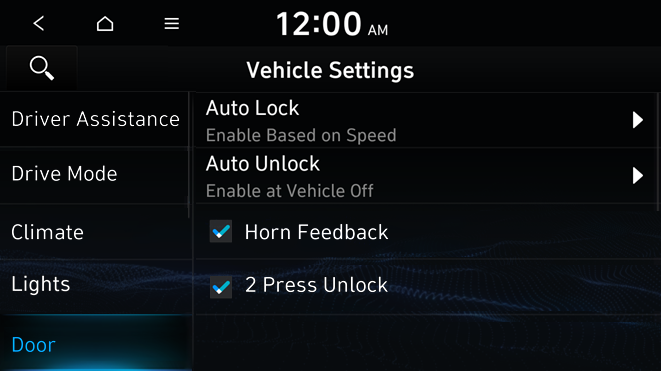
Auto Lock (if equipped)
You can set the time to automatically lock all doors.
Auto Unlock (if equipped)
You can set the time to automatically unlock all doors.
Horn Feedback (if equipped)
You can set to generate guiding beep when all doors are locked.
2 Press Unlock (if equipped)
You can set to unlock all doors by pressing the door unlock button twice.
- When you press the door unlock button once, only the driver’s seat door is unlocked.
Cluster (if equipped)
You can set the data to display on the instrument cluster and the volume and type for guiding beep.

Service Interval (if equipped)
You can set to guide you when to perform the vehicle inspection.
- • Enable Service Interval: Sets the service inspection interval. When it exceeds, the notification is provided.
- • Distance: Sets the driving distance for a service.
- • Duration: Sets the service cycle.
- • Reset: Initializes the settings for distance and duration.
Energy Consumption Reset (if equipped)
You can set to automatically initialize the average fuel economy.
- • After Ignition: The average fuel economy is automatically initialize whenever you drive the vehicle.
- • After Refueling: The average fuel economy is automatically initialize whenever you refuel the vehicle.
- • Off: The average fuel economy initialize is unavailable.
Content Selection (if equipped)
You can set the content to display on the instrument cluster.
- • Gear Position Pop-up: When the gear is shifted, the information pop-up appears.
- • Wiper/Lights Display: When the wiper or light lever operates, the operation mode appears.
- • Traffic Signs: Displays the road information such as speed bumps and speed limits.
Welcome Sound (if equipped)
You can set to generate the notification sound when turning on or off the instrument cluster.
Convenience (if equipped)
You can configure the features for convenience such as welcome sound and wireless charging.
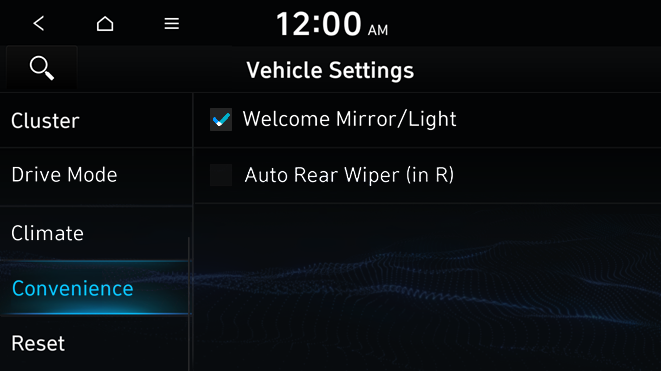
Welcome Mirror/Light (if equipped)
You can set the welcoming time on the outside rear-view mirrors.
The welcome feature is enabled by the door unlock event. When the driver with the smart key approaches, the welcome feature is enabled.
Auto Rear Wiper (in R) (if equipped)
Activates the rear windshield wiper automatically when the front wiper is On and the gear is in reverse.
Reset (if equipped)
You can initialize all system settings in the vehicle.
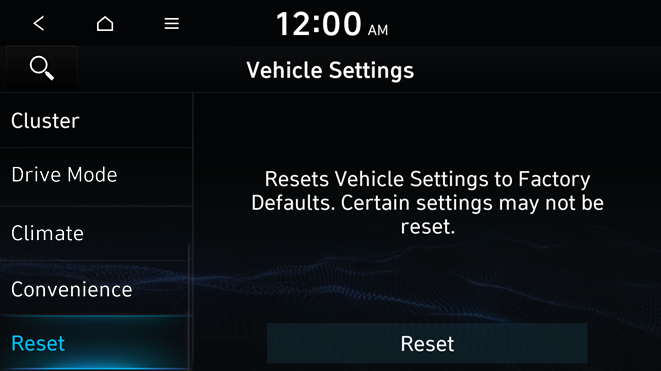
- The required features cannot be initialize.


