Using N Mode
Set the vehicle system for high-performance driving. You can configure drive mode and performance options for optimal driving and view real-time information.
- N Mode settings can be changed only when the vehicle is on.
On the All Menus screen, press N Mode.
N Mode screen
The N Mode screen provides the following features and information:
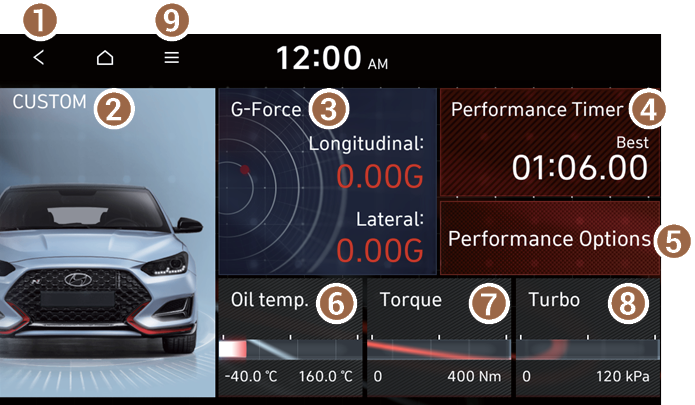
- Returns to the previous step.
- Can select the drive mode for each feature.
- Displays the gravitational force generated during a turn in real time.
- Displays the lap time.
- Can select the vehicle’s performance options.
- Displays the engine oil temperature in real time.
- Displays the engine torque in real time.
- Displays the engine turbo boost pressure in real time.
- The list of menu items appears.
- • Edit N Mode Type: You can set the N Mode type.
- • Edit N Mode Widgets: Can configure the performance info widget to show on the N Mode screen.
- • Performance Options: Can select the vehicle’s performance options.
- • Tutorial: Can view the tutorials on N Mode driving such as Track Driving and Economy.
- • User’s Manual on Web (QR Code): Displays the QR code that provides access to the online user manual for the system.
Configuring the drive mode
You can configure individual settings including the engine and suspension for each drive mode.
- On the All Menus screen, press N Mode ▶ CUSTOM.
- Set up individual settings for each drive mode.
- Press Details to see more information about each setting.
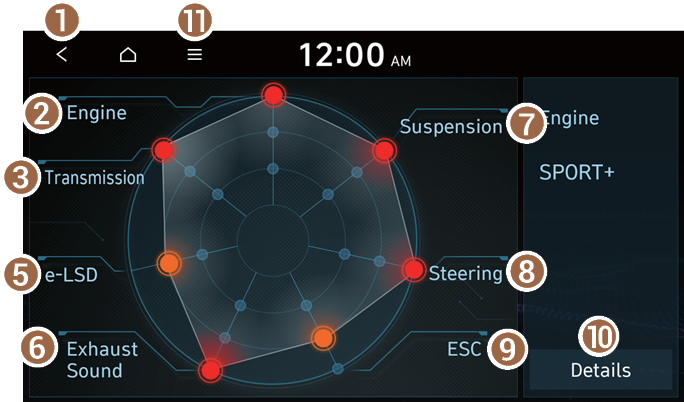
Option A
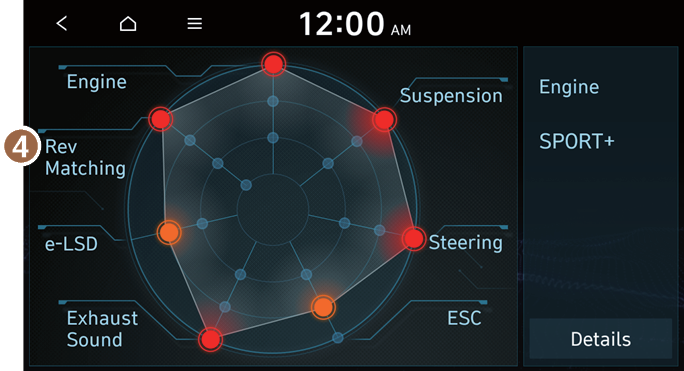
Option B
- Returns to the previous step.
- Can select the engine operation mode.
- Can change the transmission setting. The transmission setting determines the shifting speed and damping level.
- Can set to match the speeds of engine and transmission. Rev Matching allows shifting without depressing the accelerator.
- Can set differential control of the wheels. e-LSD improves steering performance during a turn while preventing a slip (if equipped).
- Can select the exhaust sound for driving (if equipped).
- Can change the suspension system setting. This setting determines the ride experience.
- Can change the steering setting. This setting determines the steering experience.
- Can set the ESC sensitivity. This setting determines the degree of automatic control the system performs to maintain stability.
- Can view details about each feature.
- The list of menu items appears.
- • Reset: Can reset all settings.
- • User’s Manual on Web (QR Code): Displays the QR code that provides access to the online user manual for the system.
Managing driving records
You can check the lap time records and measure the acceleration performance.
Checking a lap time records
You can view lap time records including the history and the best time.
On the All Menus screen, press N Mode ▶ Performance Timer ▶ Lap.
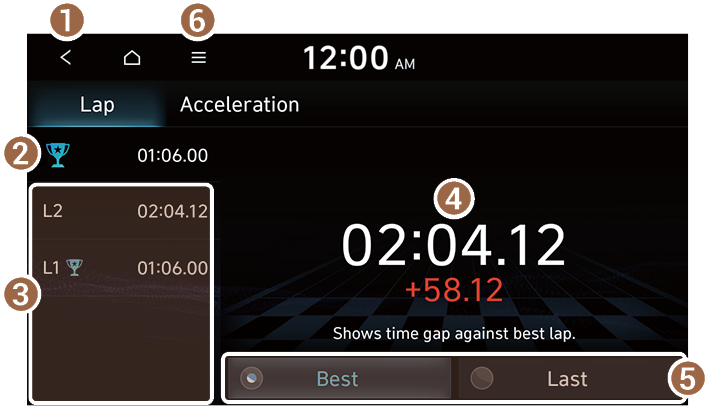
- Returns to the previous step.
- Displays the best lap time.
- Displays the last lap time.
- Displays the current lap time.
- Can set the base record to show the time gap from the best or last lap.
- The list of menu items appears.
- • List: Displays the previous records in detail.
- • User’s Manual on Web (QR Code): Displays the QR code that provides access to the online user manual for the system.
Measuring acceleration time
You can measure how long the vehicle takes to reach the target speed from a stop.
On the All Menus screen, press N Mode ▶ Performance Timer ▶ Acceleration.

Caution
- • You must be in an environment where you can drive and measure the time safely.
- • If you are on a public road, make sure you are following all relevant traffic regulations.
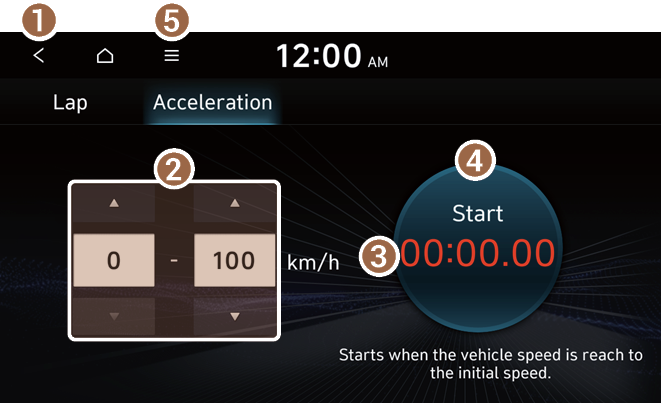
- Returns to the previous step.
- Can set the start and target speeds.
- Shows the measurement.
- Can start or cancel the measurement. Press the button and depress the accelerator to start.
- The list of menu items appears.
- • Reset: Delete all records.
- • List: Displays the previous records in detail.
- • User’s Manual on Web (QR Code): Displays the QR code that provides access to the online user manual for the system.
Viewing driving performance information
You can view real-time information on your vehicle’s driving performance, such as the gravitational force or the turbo boost pressure.
- On the All Menus screen, press N Mode.
- In the N Mode screen, select an item you want to view.
Detailed performance information will be provided.
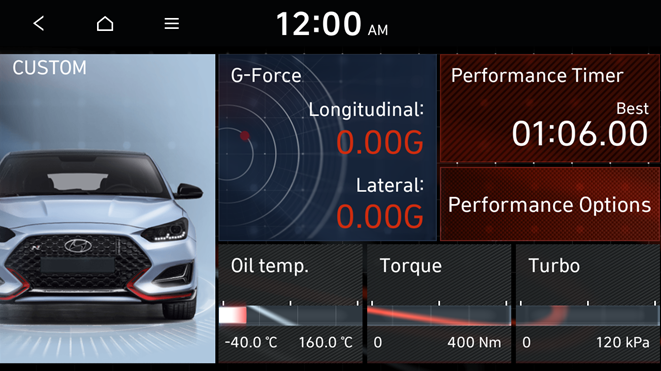
- • Oil Temp.: Displays the engine oil temperature in real time.
- • Torque: Displays the engine torque in real time.
- • Turbo: Displays the engine turbo boost pressure in real time.
- • Coolant Temp.: Displays the coolant temperature in real time.
- • Speed: Displays the current vehicle speed in real time.
- • Power: Displays the engine power in real time.
- • G-Force: Displays the gravitational force generated during a turn in real time.
Setting performance options
Set various performance options such as the RPM and drive mode.
- On the All Menus screen, press N Mode ▶ Performance Options.
- Select the performance option menu you want to set.
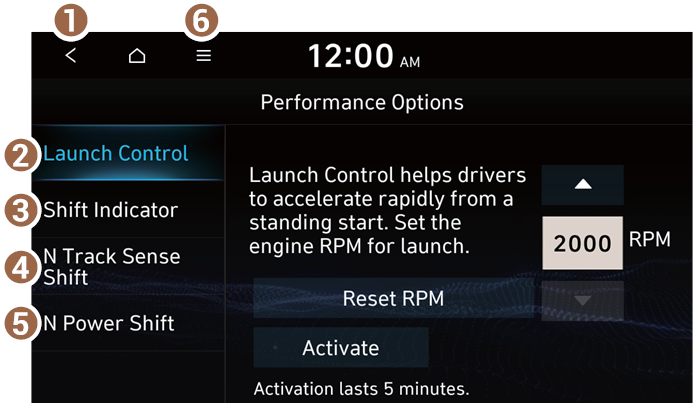
- Returns to the previous step.
- Can set the RPM to allow for the vehicle to accelerate quickly from a stop.
- Can set the drive mode and RPM for displaying the shifting signal.
- Can set to automatically change the shifting mode for Track Driving when detecting dynamic driving conditions (if equipped).
- Only available in N Mode or SPORT+ under CUSTOM Mode.
- Reduces jerking when shifting and improves acceleration performance by optimizing the shifting response (if equipped).
- Only available in N Mode or SPORT+ under CUSTOM Mode.
- The list of menu items appears.
- • User’s Manual on Web (QR Code): Displays the QR code that provides access to the online user manual for the system.


