Viewing the driving assistance screen
You can see the view around the vehicle through the system screen.
- The displayed screen may differ depending on the vehicle model.

Warning
When backing up, make sure to follow the guidelines below:
- • Before entering your vehicle, always check the area behind your vehicle.
- • Do not solely rely on the rear view camera when backing up. Always ensure that it is safe to back up by checking behind you and looking in the rearview mirrors.
- • Always back up slowly and stop immediately if you suspect that a person, especially a child, might be behind you.

Caution
Objects on the screen may not be as close or far as they appear. Before backing up, always look over both shoulders.
Rear view screen
- Press the "R" (Reverse) button shifter (or move the shift lever to "R" in a previous vehicle model) with the vehicle turned on.
The system automatically displays the rear view with parking assist guidelines.
- Safely park your vehicle, checking the rear view and guidelines.
- The example may differ from the actual screen display.
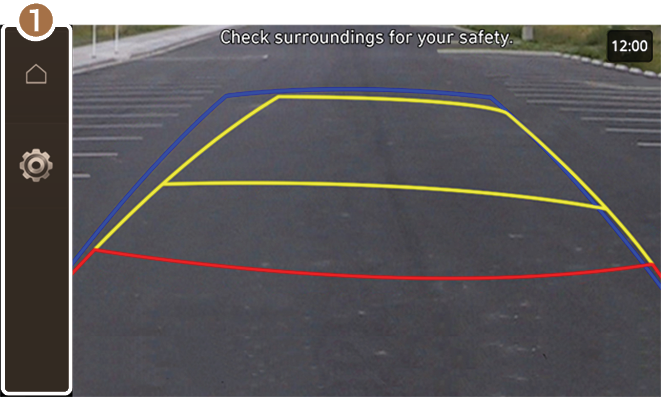
- VIEW icon
- •
 (Home icon): Displays the Home screen.
 - •
 (Settings icon): Used to adjust the brightness and contrast of camera images.
- To select the information to display on the screen, press Display Contents (if equipped).
- •
- You can set to display the rear camera display even when you change the shift position other than "R" (Reverse) after reversing. To change rear camera operation settings, On the All Menus screen, press Setup ▶ Display ▶ Camera Settings ▶ Display Contents ▶ Extended Rear View Monitor (if equipped).
- Noting the parking assist guide lines based on the steering, you can see the moving direction.
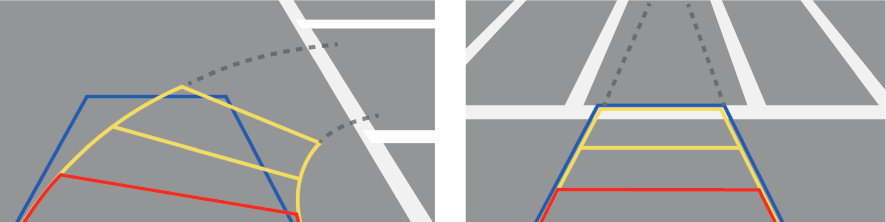
- A warning sound is heard when the vehicle approaches obstacles while parking. When you set to automatically lower the audio volume while parking, it can prevent accidents caused by failure to hear the warning sound. On the All Menus screen, press Setup ▶ Sound ▶ Driver Assistance ▶ Parking Safety Priority.
Configuring rear view settings (if equipped)
- On the rear view screen, press .
- Select and then change the settings.
- • To select the information to display on the screen, press Display Contents (if equipped).
- • To adjust the brightness and contrast of the rear view screen, press Display Settings.To initialize all Rear View screen settings, press Reset.


