Searching for destination
Place search
You can find the destination by searching for POI name, address or coordinates.
- Press [NAV] > [Places].
|
|
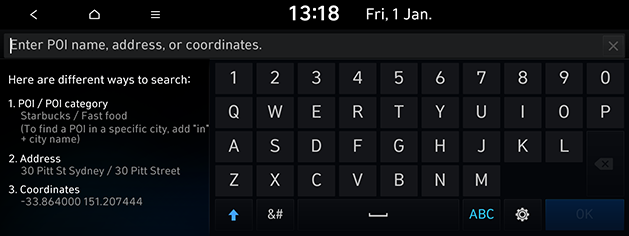
- Enter the keyword, then press [OK].
|
|
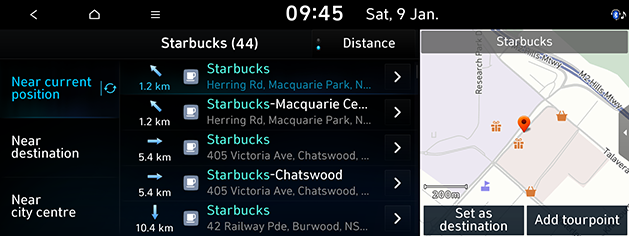
- Select the preferred item from the list then press it.
- [Near current position]: Finds place near current vehicle position.
- [Near destination]: Finds place near the selected destination.
- [Near city centre]: Finds place located in a specific city or suburb.
- Press [Set as destination].
|
|
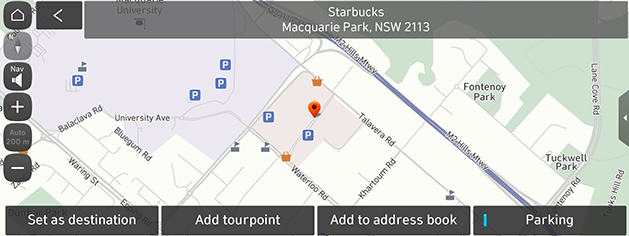
- If you want to add a tourpoint when a route is set, press [Add tourpoint].
- If you want to add the place to the address book, press [Add to address book].
- If you want to display the parking places on the map, press [Parking].
- Press [Start guidance].
|
,Note |
|
The destination is saved in [Previous destinations] menu automatically if you check [Save previous destinations] in the settings related to navigation. |
Address search
You can find the destination by searching for an address.
- Press [NAV] > [Address].
|
|
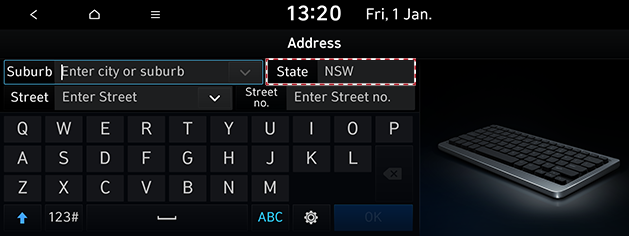
- If you want to select the state you want to search, press [State] with the red rectangle dotted line and select the desired state.
- Select state corresponding to the desired destination and enter the Street no., Street, City or Suburb, then press [OK] or [Skip].
|
|
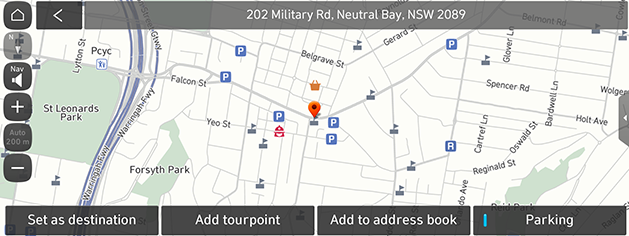
- Press [Set as destination] > [Start guidance].
|
,Note |
|
The destination is saved in the [Previous destinations] menu automatically. (Refer to “Previous destinations” part.) |
POI category
You can set a POI as a destination using different search methods.
- Press [NAV] > [POI category].
|
|
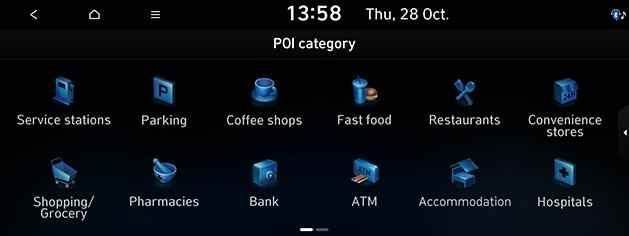
- Select one of the categories.
- Select one of the search options.
- [Along route]: Finds POI along the route.
- [Near current position]: Finds POI near current vehicle position.
- [Near destination]: Finds POI near the selected destination.
- [Near scroll mark]: Finds POI around the current cursor when the map screen is scrolled.
- [Near city centre]: Finds POI located in a specific city or suburb.
- Select the preferred item from the list then press it.
- Press [Distance] or [Name] to arrange the list in distance or name order.
- Press [Set as destination] > [Start guidance].
Restaurants
You can find a destination for a restaurant.
- Press [NAV] > [POI category] > [Restaurants].
|
|
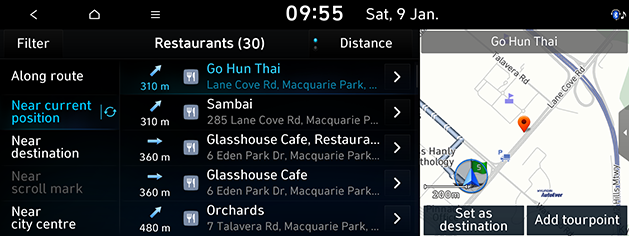
- Select one of the search options.
- [Along route]: Finds restaurants along the route.
- [Near current position]: Finds restaurants near current vehicle position.
- [Near destination]: Finds restaurants near the selected destination.
- [Near scroll mark]: Finds restaurants around the current cursor when the map screen is scrolled.
- [Near city centre]: Finds restaurants located in a specific city or suburb.
- Press the preferred item from the list.
- Press [Distance] or [Name] to arrange the list in distance or name order.
- Press [Set as destination] > [Start guidance].
Service stations (Non EV vehicles only)
You can find a destination for a Service station.
- Press [NAV] > [POI category] > [Service stations].
|
|
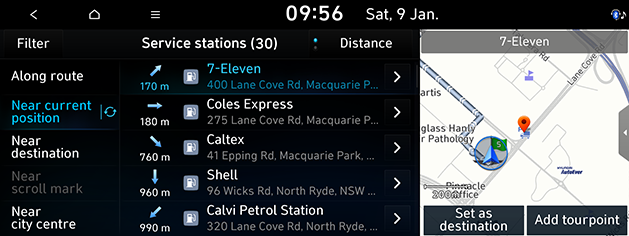
- Select one of the search options.
- [Along route]: Finds Service stations along the route.
- [Near current position]: Finds Service stations near current vehicle position.
- [Near destination]: Finds Service stations near the selected destination.
- [Near scroll mark]: Finds Service stations around the current cursor when the map screen is scrolled.
- [Near city centre]: Finds Service stations located in a specific city or suburb.
- Press the preferred item from the list.
- Press [Distance] or [Name] to arrange the list in distance or name order.
- Press [Filter] to set the search filter related to service stations.
- Press [Set as destination] > [Start guidance].
EV charging stations (EV vehicles only)
You can find a destination for an EV charging station.
- Press [NAV] > [POI category] > [EV charging stations].
|
|
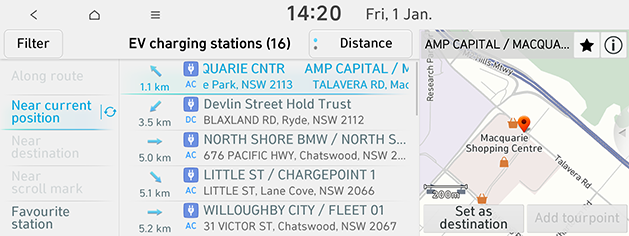
- Select one of the search options.
- [Along route]: Finds EV charging stations along the route.
- [Near current position]: Finds EV charging stations near current vehicle position.
- [Near destination]: Finds EV charging stations near the selected destination.
- [Near scroll mark]: Finds EV charging stations around the current cursor when the map screen is scrolled.
- [Favourite station]: Finds EV charging stations added as favourite station.
- Press the preferred item from the list.
- Press [Distance] or [Name] to arrange the list in distance or name order.
- Press [Filter] to set the search filter related to EV charging stations.
- Press [
 ] to add favourite station.
- Press [Set as destination] > [Start guidance].
Emergency
You can find a destination by searching for Police stations, Hospitals or Road assistance in emergency situations.
- Press [NAV] > [POI category] > [Police stations], [Hospitals] or [Roadside assistance].
|
|
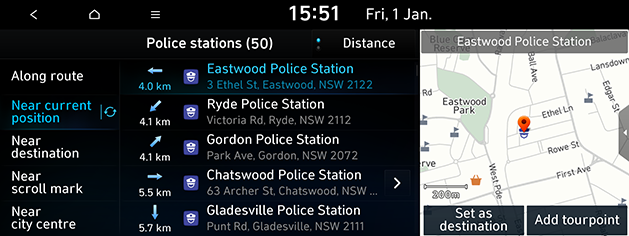
- Press the preferred item from the list.
- Press [Set as destination] > [Start guidance].
Hyundai dealerships (Hyundai service)
You can set the facilities of Hyundai dealerships (Hyundai service) as a destination.
|
,Note |
|
If the live service is connected, the Hyundai dealerships (Hyundai service) information can be searched from the server. |
- Press [NAV] > [Hyundai service] or [Hyundai dealerships].
|
|
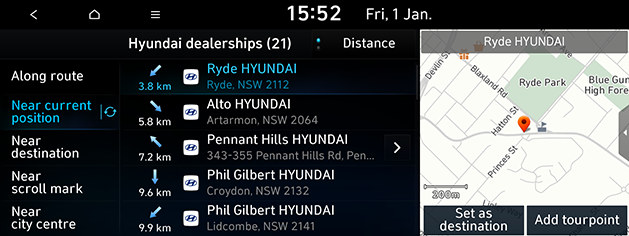
- Press [Distance] or [Name] to arrange the list in distance or name order.
- Press the preferred item from the list.
- Press [Set as destination] > [Start guidance].
|
,Note |
|
The information for the Hyundai dealerships (Hyundai service) facilities may not correspond to a result of map information, since the information can be provided up to date. |
Coordinates
You can find a destination by entering the coordinates of latitude and longitude.
- Press [NAV] > [Coordinates].
|
|
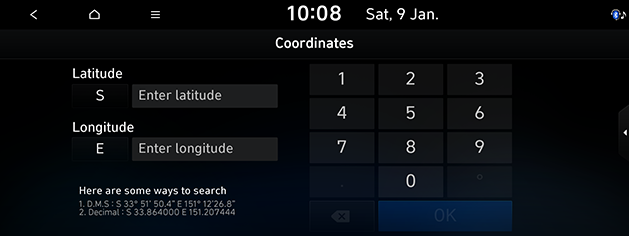
- Enter the coordinates and press [OK].
- Press [Set as destination] > [Start guidance].
Previous destinations
You can select one of the locations you have previously searched for as a destination, tour point and starting point.
- Press [NAV] > [Previous destinations] and select the subcategory.
|
|
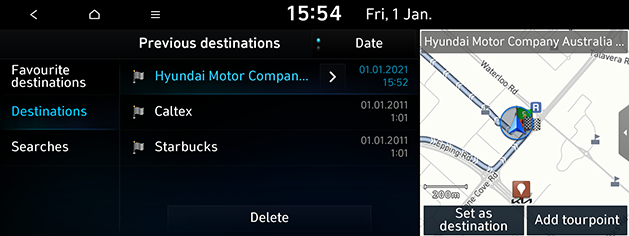
- Press [Date] or [Name] to arrange the list in date or name order.
- Press [Delete] to delete the previous destinations. Select the desired item, then press [Delete].
- [Mark all]: Marks all items.
- [Unmark all]: Unmark all items.
- Press the preferred item from the list.
- Press [Set as destination] > [Start guidance].
Address book
You can select a destination from a location saved in the [Address book] menu. To utilize this function more effectively, destinations that you often travel to should be saved in advance.
First of all, store in the [Address book] menu through the destination search function.
- Press [NAV] > [Address book] > [Favourites] or [My places].
|
|
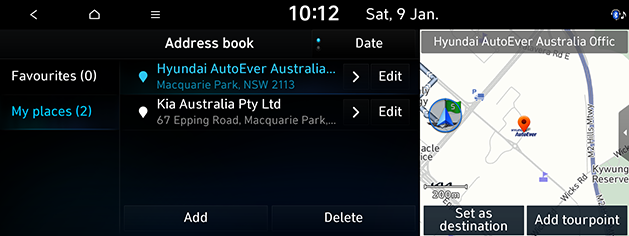
- Press [Favourites] or [My places].
- Press [Date] or [Name] to arrange the list in date or name order in [My places] menu.
- Press [Edit] to edit an item among many items.
- Press [Add] to add a location.
- Press [Delete] to select and delete items from various entries all at once.
- Press the preferred item from the list.
- Press [Set as destination] > [Start guidance].
Adding the location to [My places]
- Press [NAV] > [Address book] > [My places] > [Add].
|
|
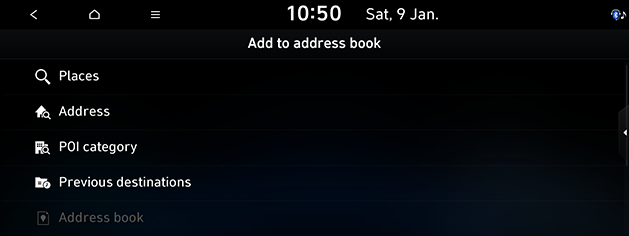
- Select the position to register. You can search by entering the keywords or using the POI category menu, the previous destinations list, etc.
- Select the desired item and press [Done].
Editing Address book
- Press [NAV] > [Address book] > [Favourites] or [My places] > [Edit].
|
|
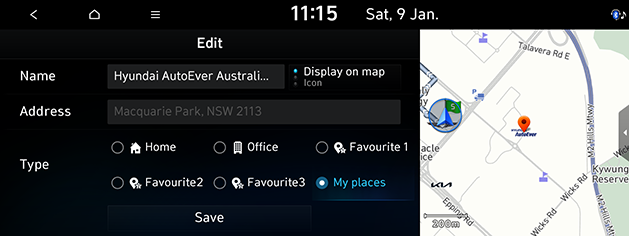
- Edit the desired items.
- [Name]: Changes to the desired name. The name of the places in [Favourites] cannot be changed.
- [Display on map]: Sets how to be displayed on the map screen by selecting [Icon], [Icon & Name] or [Off].
- [Type]: Sets where to be saved in address book.
- Press [Save] to save the setting.
Deleting Address book
- Press [NAV] > [Address book] > [Favourites] or [My places] > [Delete].
|
|
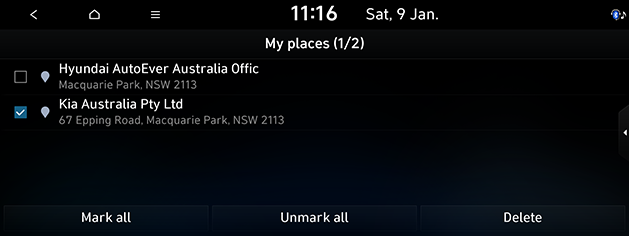
- Select the desired item, then press [Delete].
- [Mark all]: Selects all items.
- [Unmark all]: Unmark all items.
Home/Office/Favourites
If your home location, office location and favourite locations are already in the [Navigation menu], they can be easily retrieved by tapping on them.
First of all, store home, office or favourites in the [Navigation menu] through the destination search function.
Registering home, office or favourites place
- Press [NAV].
|
|
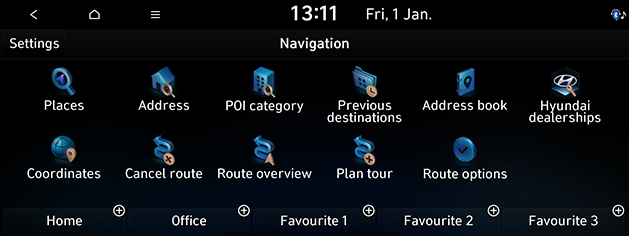
- Press the short-cut button on the bottom of the screen to register the place. You can select [Home], [Office], [Favourite 1], [Favourite 2], or [Favourite 3].
- Select the position to register. You can search by entering the keywords or using the POI category menu, the previous destinations list, etc.
- Select the desired item and press [Done]. It is saved in the short-cut button you selected.
Finding your Home, Office or Favourites place
You can set the route using the short-cut button that the address is registered.
- Press [NAV].
- Select the short-cut button that the address is registered. You can select [Home], [Office], [Favourite 1], [Favourite 2], or [Favourite 3], if the address is registered.
|
|
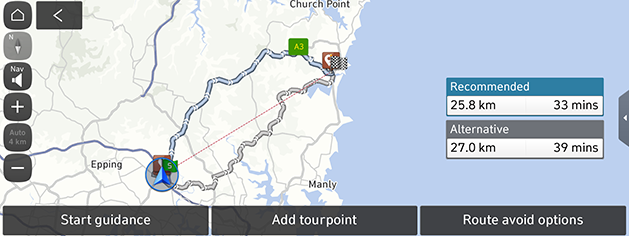
- Select the desired route and press [Start guidance].
- If you want to add a tourpoint when a route has been set, press [Add tourpoint]. For more details, refer to "Adding tourpoints" part.
- If you want to set the route options, press [Route avoid options].