Configuring the general system settings
You can configure general settings for date, time, language, and the like. You can also check information of the system.
- Available settings may differ depending on the vehicle model and specifications.
- On the All Menus screen, press Setup ▶ General.
The general settings screen appears.
- Configure the settings required:
- Press
 ▶ Search for Settings or press
  and enter a keyword to search for a setting item.
SW Info
You can see the versions of system components.
System Info
You can check the system storage space. You can also use your smartphone to access the online user's manual of the system, or initialize all system settings to default values.
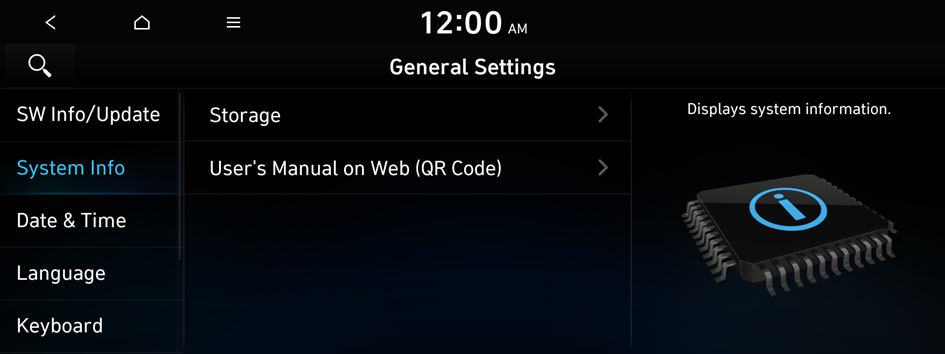
Storage
You can check the storage space of the system memory where voice memos can be saved.
User's Manual on Web (QR Code)
You can access the online user's manual of the system by scanning the QR code with your smartphone.
Date & Time
You can set the system date and time automatically or manually. You can also set the time display mode.
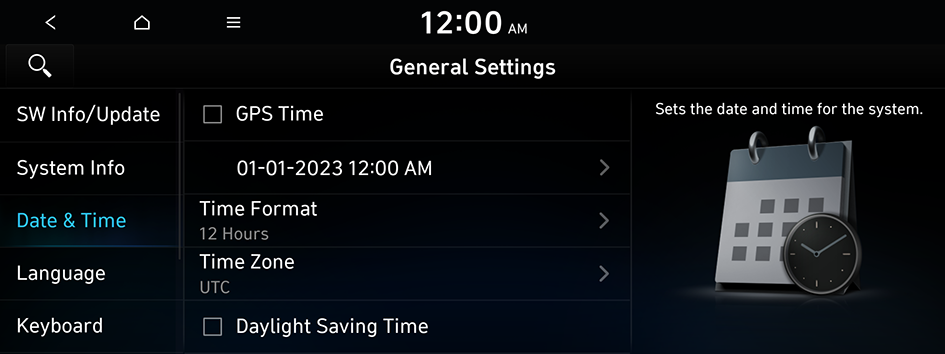
GPS Time
After receiving the time from GPS, it sets the system date and time automatically.
- To manually set the date and time, uncheck GPS Time, press the current date and time below GPS Time.
Time Format
Change the system time display format.
Time Zone
You can select your time zone.
Daylight Saving Time
Displays the system time in the format of Daylight Saving Time.
Language
You can set the system display language.
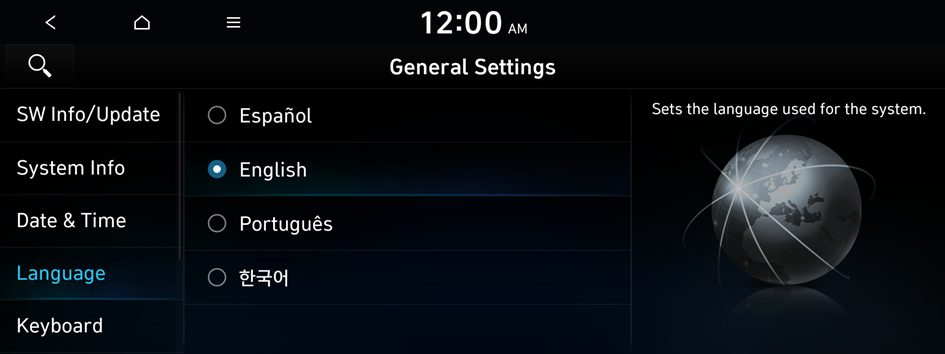
- Once the language has been changed, it takes a while to apply the new language to the system. The notification pop-up window appears as soon as the new language is applied to the system. When you wait a while or press anywhere outside the pop-up window, the window automatically disappears.
- When you change the system language, it does not affect the display of other unique data such as MP3 music file name.
- Depending on the system language, the Bluetooth phone message view may not be supported.
Keyboard
You can change the keyboard type for each language to use when entering the text.
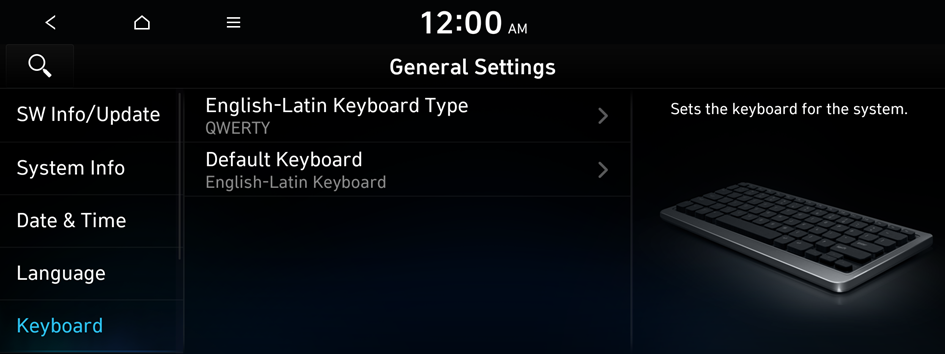
English-Latin Keyboard Type
You can select the keyboard type to use when entering the English text.
Default Keyboard
You can select the default keyboard type.
Units
You can specify the units to display on the system screen.
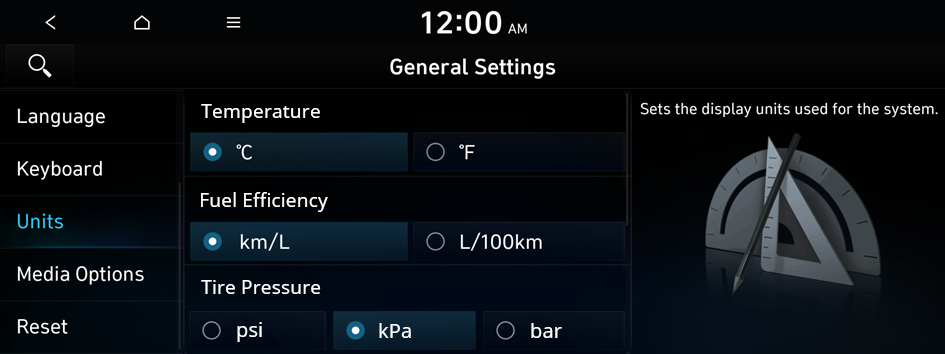
Temperature
You can select the temperature unit to display on the screen.
Fuel Efficiency
You can select the unit for fuel economy to display on the screen.
Tire Pressure
You can select the unit for tire pressure to display on the screen.
Media Options
You can set the media player not to start automatically when starting the engine or set it to notify you of any information changes during media playback.
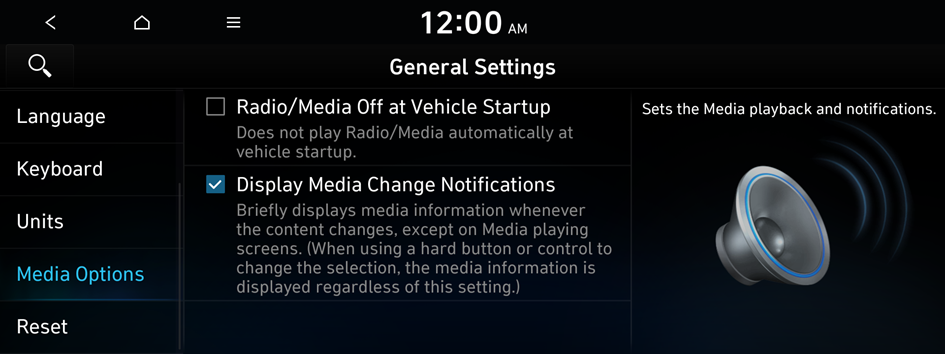
Radio/Media Off at Vehicle Startup
You can set the media player not to start automatically when starting the engine.
Display Media Change Notifications
You can set the system to briefly display media information at the top of the screen if the current song or channel changes when not on the main media screen.
Reset
You can reset your system settings to the default values.
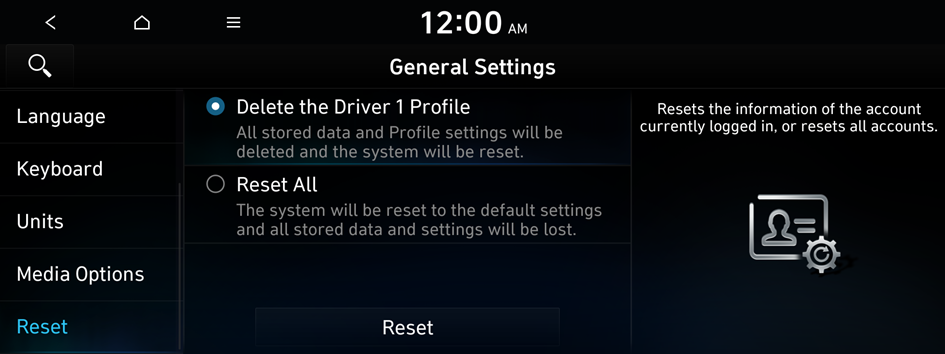
- You can also initialize all settings of the login profile.

Caution
- • When initialization is performed, all user data in the system including the location data is deleted.
- • When phone projection is active, you cannot reset the system settings. To reset the settings, remove the USB cable from your system.


