Configuring the display settings
You can change the system display settings such as display brightness and video aspect ratio.
- On the All Menus screen, press Setup ▶ Display.
The display settings screen appears.
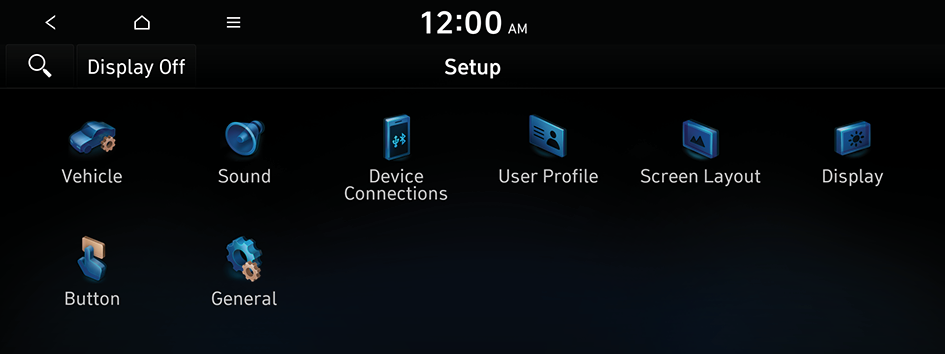
Type1
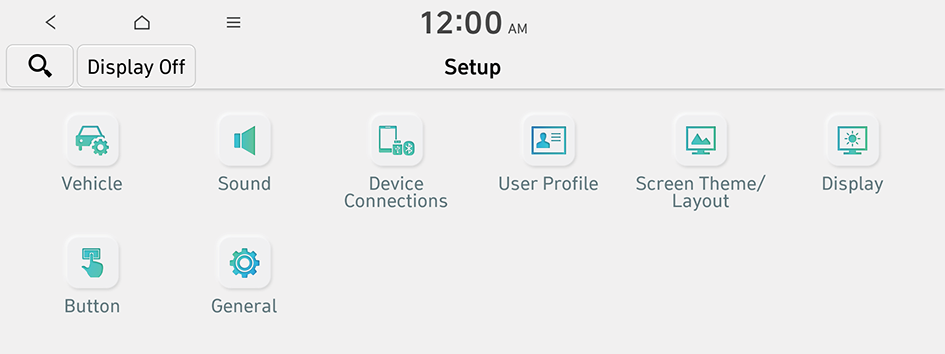
Type2
- The screen may differ depending on the vehicle model and specifications.
- If the vehicle is type 2, it is possible to change the graphic theme to white or black. ▶ See "Graphic Themes (if equipped)."
- Configure the settings required:
- Press
 ▶ Search for Settings or press
  and enter a keyword to search for a setting item.
 - If you press Display Off at the top of the screen, the screen is switched off. To switch the screen back on, press the screen or briefly press the power button.
Illumination
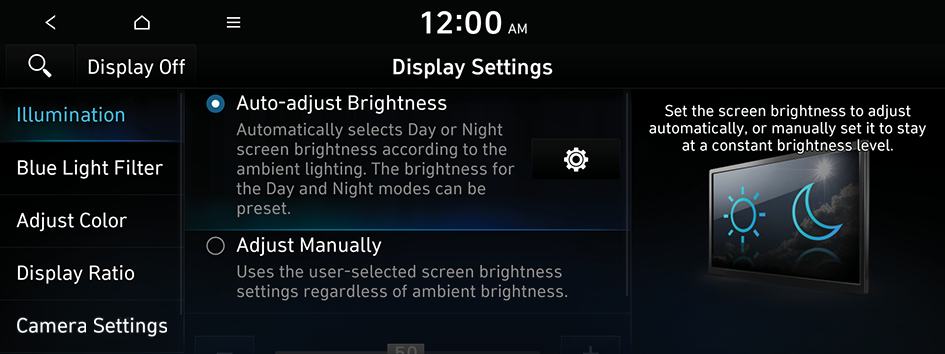
You can set the system to automatically adjust the display brightness depending on the ambient light intensity. You can also set the system to keep the display bright or dark all the time. You can set to automatically adjust the display brightness depending on the cluster illumination. You can also set the level of display brightness to use while using the daytime or night mode.
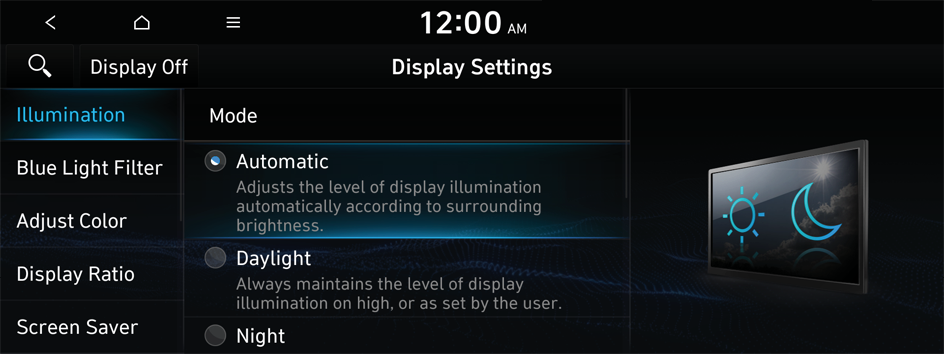
Option A
Option B
- The screen may differ depending on the vehicle model and specifications.
Mode (if equipped)
- • Automatic: The display brightness is automatically adjusted based on the surrounding environment.
- • Daylight: It is activated when Automatic is turned off. It keeps the display always bright regardless of the surrounding environment.
- • Night: It is activated when Automatic is turned off. It keeps the display always dark regardless of the surrounding environment.
Illumination (if equipped)
- • Link to Cluster Illumination Control: The display brightness is automatically adjusted based on the cluster illumination.
- • Daylight: You can set the display brightness when Daylight is selected under Mode. Uncheck Link to Cluster Illumination Control and then set to the desired brightness.
- • Night: You can set the display brightness when Night is selected under Mode. Uncheck Link to Cluster Illumination Control and then set to the desired brightness.
- To reset all screen brightness settings to the default values, press Reset.
Auto-adjust Brightness (if equipped)
You can set the system brightness to be adjusted according to the ambient lighting conditions. Press  to set the brightness for the day or night mode.
Adjust Manually (if equipped)
You can set the screen to stay bright or dimmed.
Blue Light Filter
Enable blue light filtering to adjust the screen light to reduce the level of eye strain.
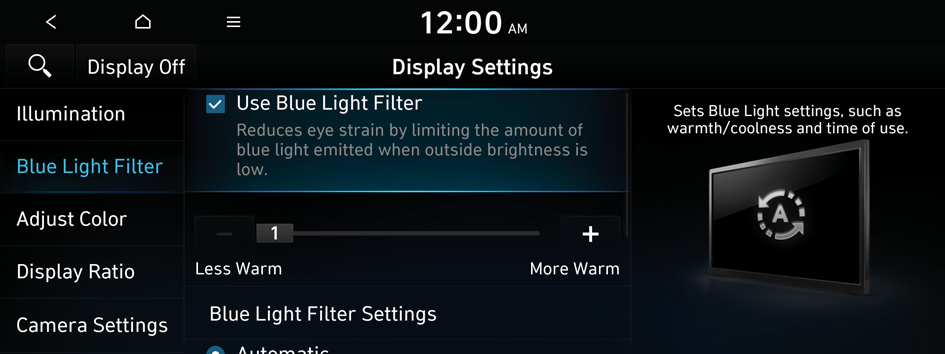
Use Blue Light Filter
Enable or disable blue light filtering.
Blue Light Filter Settings
Set to activate blue light filtering automatically based on the ambient light or pick the time range manually.
- • Automatic: Enable blue light filtering based on the ambient light.
- • Scheduled Time: Enable blue light filtering during the set time range.
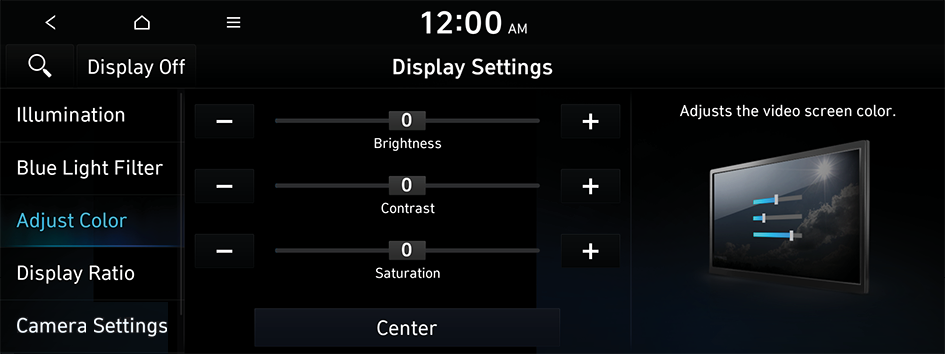
Adjust Color
You can change the display settings during the playback.
- This function is enabled only when playing video.
- To initialize all display settings, press Center (if equipped).
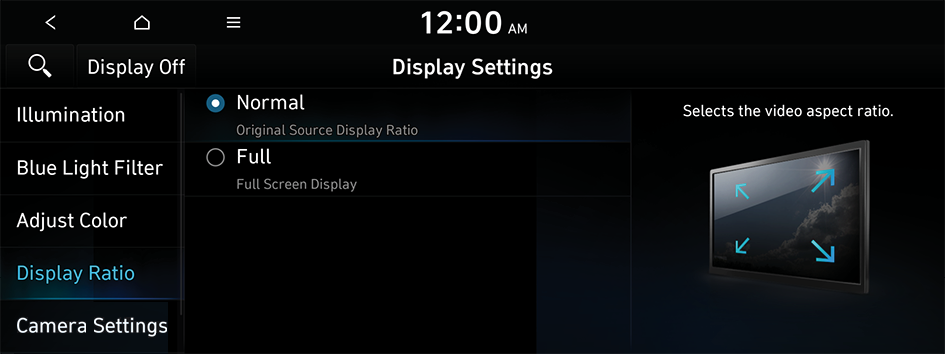
Display Ratio
You can set the system to display video in the original aspect ratio or in full screen.
- This function is enabled only when playing video.
Camera Settings (if equipped)
You can configure the screen settings for the driving assist view and set the information to display in the view.
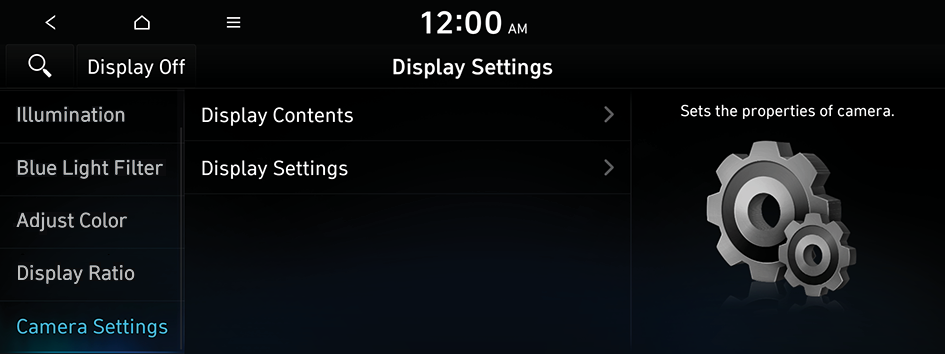
Display Contents
You can set the information to display on the view screen.
- • Extended Rear View Monitor: You can set to display the rear camera display even when you change the shift position other than "R" (Reverse) after reversing.
Display Settings
You can adjust the brightness and contrast of the view screen.
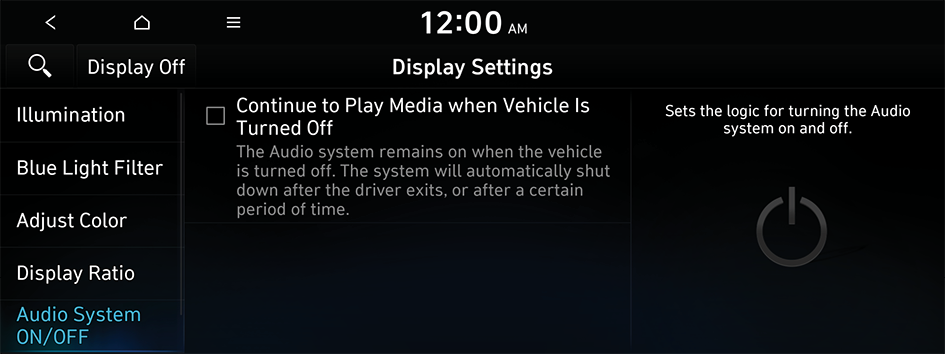
Audio System ON/OFF (if equipped)
You can set so that power for the system is maintained when the vehicle is turned off.
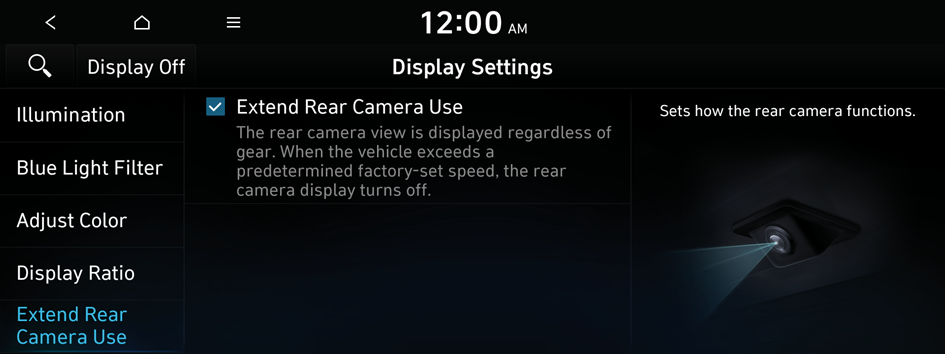
Extend Rear Camera Use (if equipped)
You can set to display the rear camera display even when you change the shift position other than "R" (Reverse) after reversing.
- When you shift to "P" (Park) or drive at a predetermined speed or faster, the rear view screen disappears to display the previous screen.
Screen Saver (if equipped)
You can select the items to display on the screen saver in standby mode.
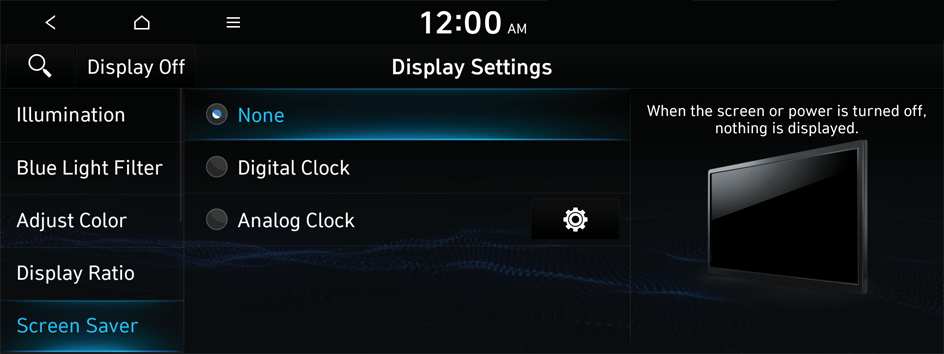
None (if equipped)
Displays nothing on the system screen saver.
Digital Clock (if equipped)
Displays the digital clock on the system screen saver.
Analog Clock (if equipped)
Displays the analog clock on the system screen saver.
- Press
 to choose the Analog Clock to show on the screen.
Home Screen (if equipped)
You can rearrange the icons displayed on the All screen.
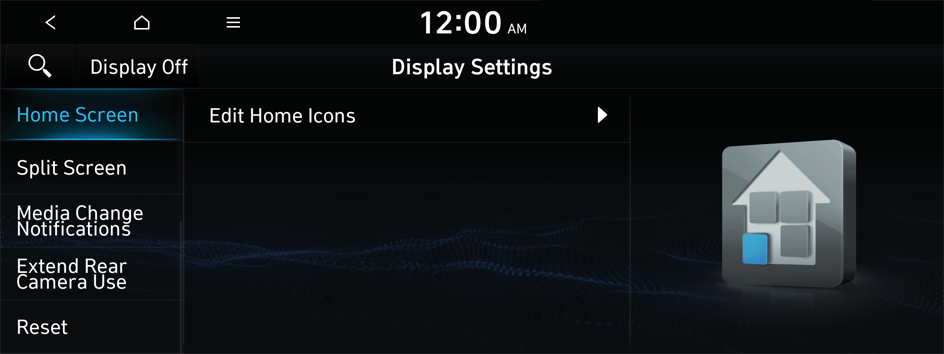
Edit Home Icons (if equipped)
You can edit the arrangement of home icons.
- For more information: ▶ see "Editing the icons on the Home screen."
Split Screen (if equipped)
You can specify the items to display on the Split Screen.
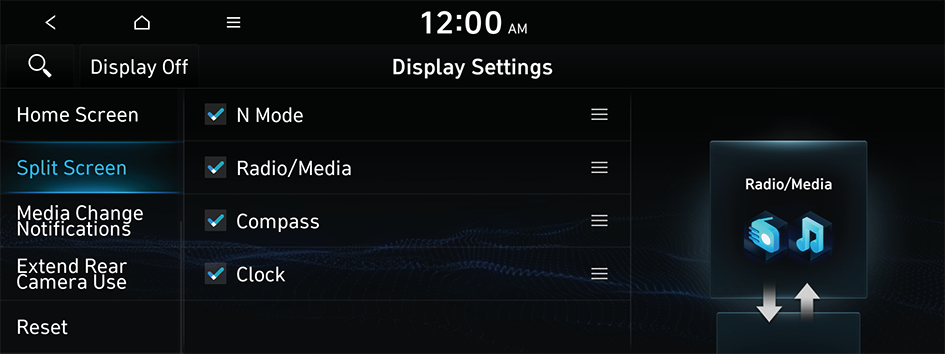
- This option is only available when the display supports Split Screen.
- On the screen list, press on the right and drag the item to reposition.
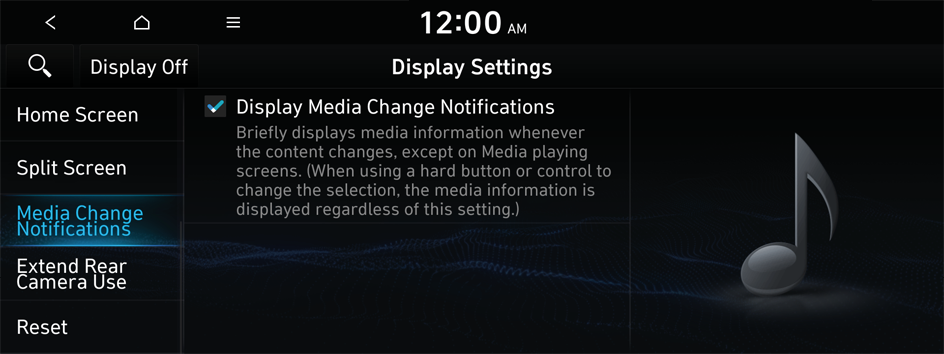
Media Change Notifications (if equipped)
You can set to display the changed music or channel information at the top of the screen when switched to another function during media playback.
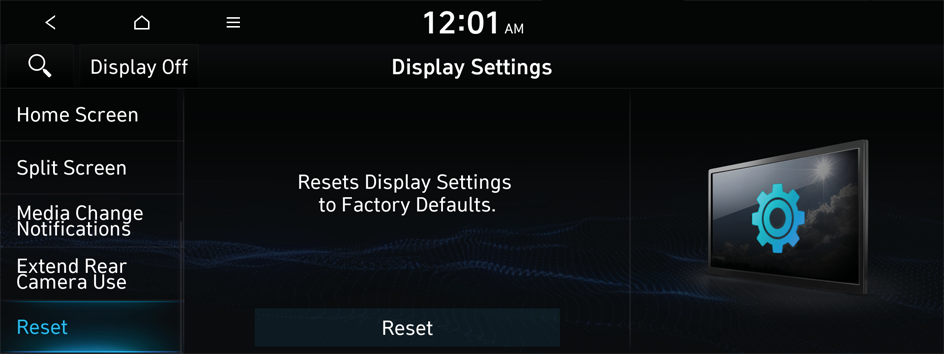
Reset (if equipped)
You can initialize all display settings such as brightness and aspect ratio during video playback.