Configuring the device connections settings
You can manage Bluetooth devices or configure their operation settings. You can also activate the phone projection so that you can control the smartphone Apps on the system screen after connecting the smartphone to the system.
- Available settings may differ depending on the vehicle model and specifications.
- On the All Menus screen, press Setup ▶ Device Connections.
The device connection settings screen appears.
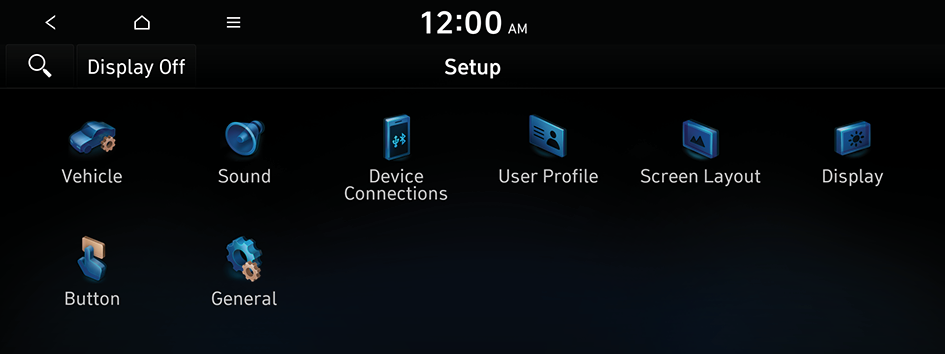
Type1
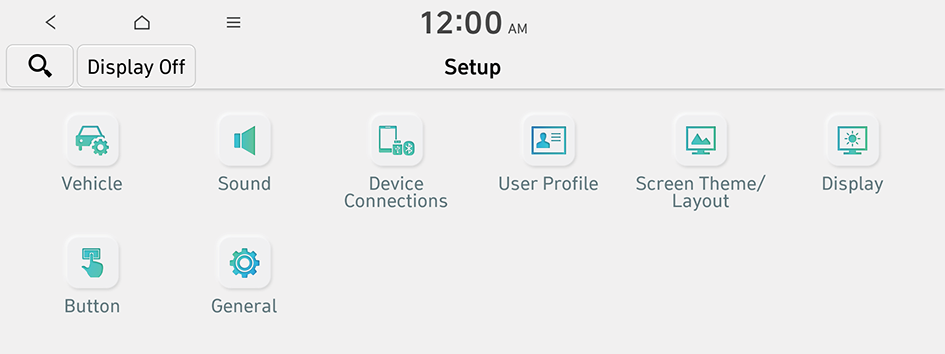
Type2
- The screen may differ depending on the vehicle model and specifications.
- If the vehicle is type 2, it is possible to change the graphic theme to white or black. ▶ See "Graphic Themes (if equipped)."
- Configure the settings required:
- Press
 ▶ Search for Settings or press
  and enter a keyword to search for a setting item.
Device Connections (if equipped)
You can manage Bluetooth devices or configure their operation settings. You can also activate the phone projection so that you can control the smartphone Apps on the system screen after connecting the smartphone to the system.
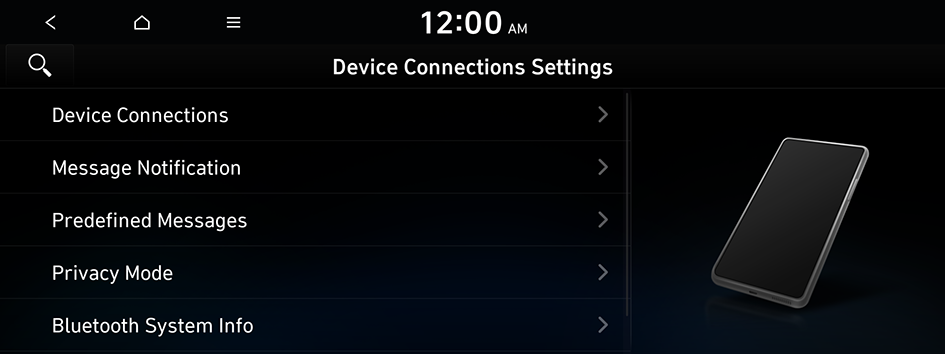
Message Notification (if equipped)
Displays a notification message when a message is received.
Predefined Messages (if equipped)
You can edit the auto-reply message that is automatically sent out after receiving a text message or receiving a phone call.
Privacy Mode (if equipped)
Enable or disable Privacy Mode. Hide data including contacts and call history from showing up on the system screen to protect privacy.
Bluetooth System Info (if equipped)
You can see and edit the Bluetooth information of the system.
Phone Projection Settings (if equipped)
You can activate the phone projection connection function to pair your smartphone with the system.
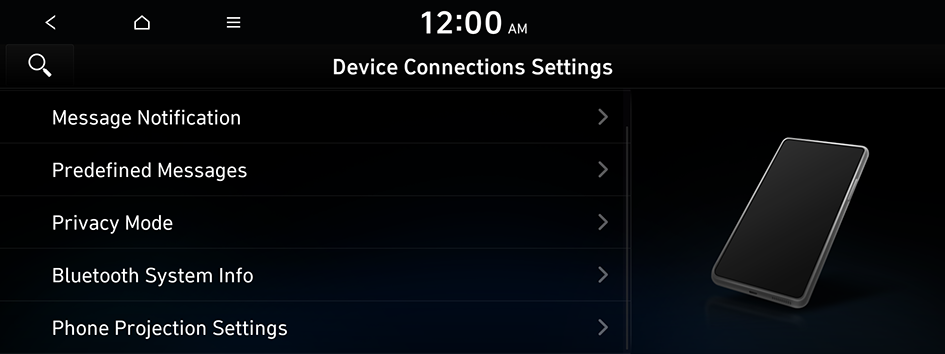
Android Auto
You can activate the Android Auto function to pair your Android smartphone with the system.
Apple CarPlay
You can activate the Apple CarPlay function to pair your iPhone with the system.
Bluetooth (if equipped)
You can register or delete a Bluetooth device from the system and connect or disconnect a registered device. You can also configure operation settings such as notifications, messages, and other settings for Bluetooth devices.
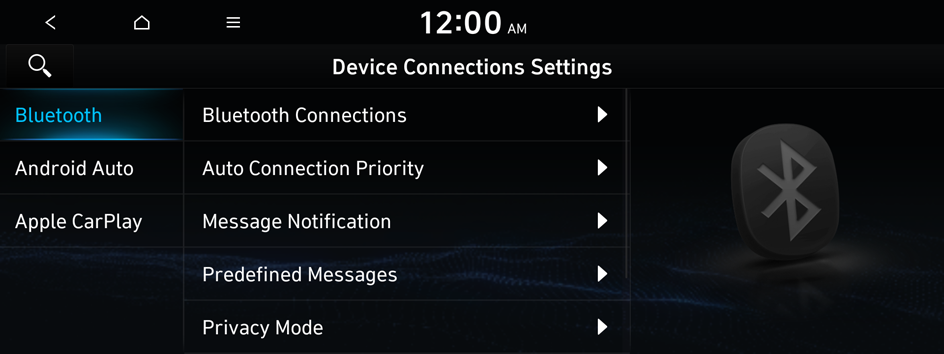
- For more information on how to use the Bluetooth functions: ▶ see "Connecting a bluetooth device."
- Some setting options appear when a smartphone is connected to the system.
Bluetooth Connections (if equipped)
You can register or delete a Bluetooth device from the system and connect or disconnect a registered device.
- You can add one Bluetooth hands-free kit or up to two Bluetooth audio devices.
Auto Connection Priority (if equipped)
Set the priority order for automatic Bluetooth connection to the system when it turns on.
- On the device list, tap on
 on the right and drag the item to reposition.
Message Notification (if equipped)
Displays a notification message when a message is received.
Predefined Messages (if equipped)
You can edit the auto-reply message that is automatically sent out after receiving a text message or receiving a phone call.
- This option may not be available in some phone models.
Privacy Mode (if equipped)
Enable or disable Privacy Mode. Hide data including contacts and call history from showing up on the system screen to protect privacy.
Bluetooth System Info (if equipped)
You can see and edit the Bluetooth information of the system.
Reset (if equipped)
You can delete all registered Bluetooth devices and initialize Bluetooth settings. All data for Bluetooth devices are also deleted.


