Display
This menu is used to change the display environment settings.
-
Press SETUP > Navigation > Display.
-
Select the desired menus.
-
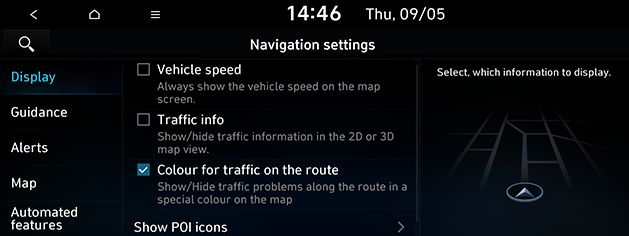
Vehicle speed: The vehicle speed is displayed on the map screen. In some model of the vehicles, the GPS speed is displayed and it may differ from the cluster speed.
-
Traffic info: Turns the traffic information on the map on or off.
-
Colour for traffic on the route: Shows or hides traffic problems along the route in a special colour on the map.
-
Show POI icons: Sets the nearby POI to display on the map.
-
Guidance
This menu is used to change the guidance settings.
-
Press SETUP > Navigation > Guidance.
-
Select the desired menus.
-
Route options (Network activated): Changes the route options.
-
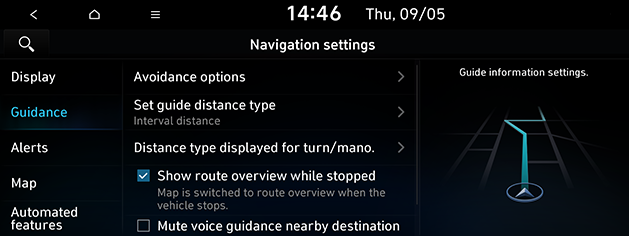
Avoidance options (Network deactivated): Selects the route avoid options to set the preferred route.
-
Set guide distance type: Sets the distance display method to the guidance position to Interval distance or Cumulative distance.
-
Distance type displayed for turn/mano.: Sets the guidance option based on location.
-
Show route details: Sets whether to display detailed information on the route.
-
-
Show route overview while stopped: Sets route overview to be displayed while stopping.
-
Mute voice guidance nearby destination: Sets the voice guidance to be muted nearby destination.
-
Alerts
This menu is used to change the camera alert settings.
-
Press SETUP > Navigation > Alerts.
-
Select the desired menus.
-
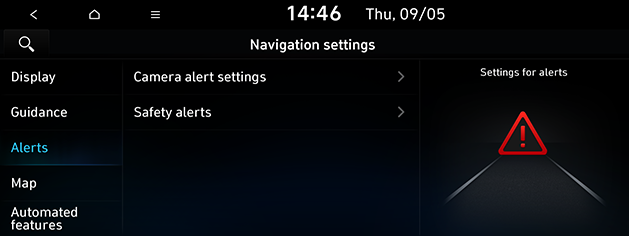
Camera alert settings: Adjusts camera alert settings.
-
Alert distance depending on the speed limit: Sets the alert distance depending on the speed limit.
-
Alert distance (local road): Sets the alert distance in the local road.
-
Alert distance (motorway): Sets the alert distance in the motorway.
-
-
Safety alerts: Sets the guidance for daytime or nighttime safety alerts.
-
Map
This menu is used to change the map settings.
-
Press SETUP > Navigation > Map.
-
Select the desired menus.
-
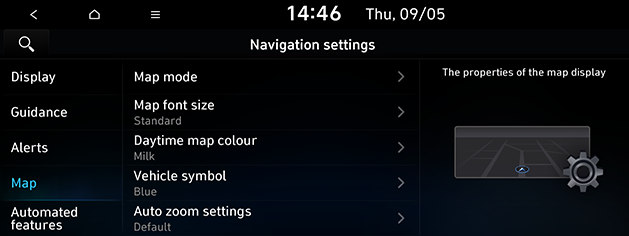
Map mode: Sets the type of the map.
-
Map view: Changes the map view perspective.
-
3D buildings: Sets whether to display buildings in 3D heading up map view.
-
Auto zoom: Sets whether to adjust the scale automatically.
-
-
Map font size: Sets the size of the map font.
-
Daytime map colour (If equipped): Sets the map colour of the daytime.
-
Vehicle symbol: Sets the vehicle symbol colour.
-
Auto zoom settings: Sets the range of auto-scale which is automatically adjusted according to the vehicle speed.
-
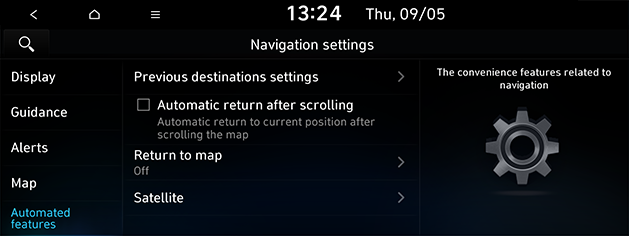
Automated features
-
Press SETUP > Navigation > Automated features.
-
Select the desired menus.
-
Previous destinations settings: Sets the details of previous destination options.
-
Save previous destinations: Sets the previous destination to be saved in Previous destinations.
-
Display previous destinations when entering the map screen: The previous destination is displayed when entering the map mode for the first time after turning on the system.
-
-
Automatic return after scrolling: Sets the vehicle to return to the centre of the map automatically.
-
Return to map: Sets the time that the vehicle returns to the map.
-
Satellite: Displays the satellite status.
-