Before using Bluelink® (If equipped)
What is Bluelink?
This is a telematics service based on our cutting-edge IT system that makes your driving experience more convenient and fun and features safety, security, vehicle diagnostics, remote control and even smartphone synchronization functions.
Enjoy a smarter driving style with Bluelink.
What is Telematics?
The word “Telematics” stems from the combination of telecommunications and informatics. It refers to an information system that provides a variety of driving information through the built-in terminal by analyzing each symptom and driving state. This allows for a much safer and more comfortable driving experience.
About Transmission and Reception of Radio Waves
Connection to the Bluelink Center or wireless data transmission may be disrupted in the following places.
For radio wave transmission/reception status, refer to the status displayed on the Bluelink screen.
It is recommended that you use the Bluelink system when the antenna icon ( ) shows four bars or more.
Places where Bluelink may be disrupted depending on the transmission/reception status:
-
Inside tunnels
-
Mountainous areas or dense forest
-
Roads close to cliff edges
-
Densely built-up areas
-
On highways or roads underneath higher interchange roads
-
Inside buildings
Using Bluelink Services
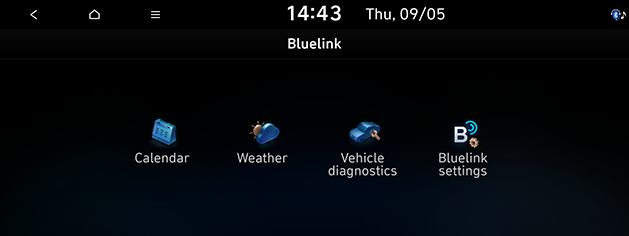
Use Bluelink features such as Calendar, Weather, Vehicle diagnostics and Bluelink settings. Bluelink features can be used after activating the service. A separate fee may be charged for using Bluelink, and features may differ according to your service plan.
-
Press Bluelink on the home screen.
-
Select the desired item.
-
Calendar: Checks the planned schedule.
-
Weather: Display weather information and forecast for 6 days, and display weather information of current location, tourpoint and destination.
-
Vehicle diagnostics: Diagnoses anomalies in the vehicle and checks diagnostic results.
-
Bluelink settings: Displays Activate service, Modem information, Verification code, Bluelink activation help, Terms of use, Privacy notice, Deactivate Bluelink.
-
Bluelink® Voice Local Search
With the Bluelink network service, you can search for TomTom place names with your voice.
Bluelink Voice local search performs place name search through network services, it is only available when connected to a communication network.
-
Press the [k] on the steering wheel remote control.
-
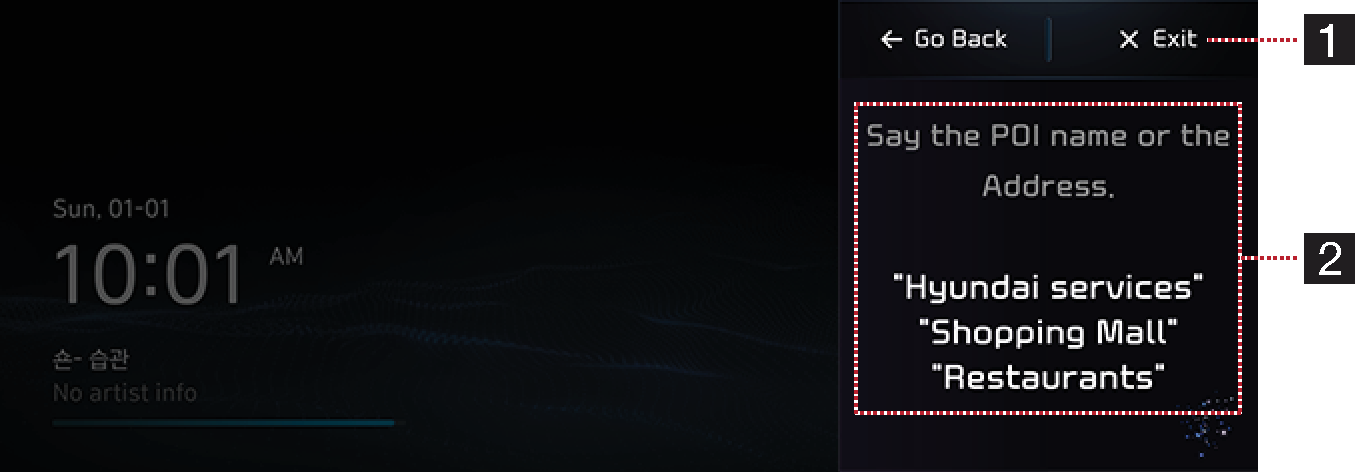
Say "Search address", or "Find POI". It goes to the Bluelink Voice Local Search screen.
-
End button
Ends Bluelink Voice Local Search.
-
Example command
Shows an example to ask for a place search.
-
This function will not be supported in other languages than English. If the current language does not support this function, change the system language to English.
Calendar
Through the Bluelink smartphone app, it proceeds with linking with calendar (Google, iCloud) that customer uses first.
Press [ ] > Bluelink > Calendar.
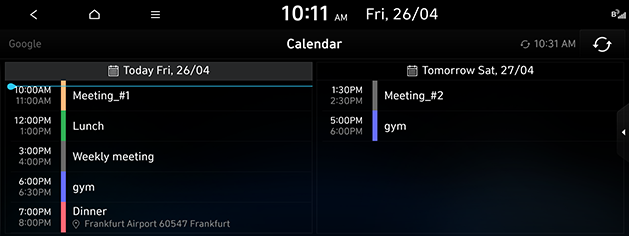
If there is place information in the schedule details screen, the place information is searched by navigation when the user selects the search destination button.
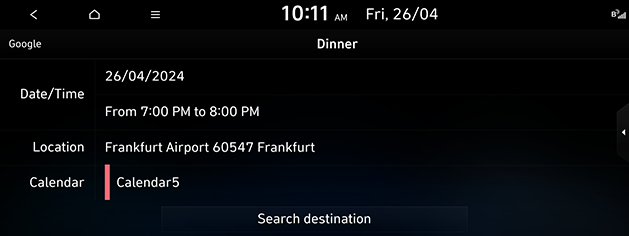
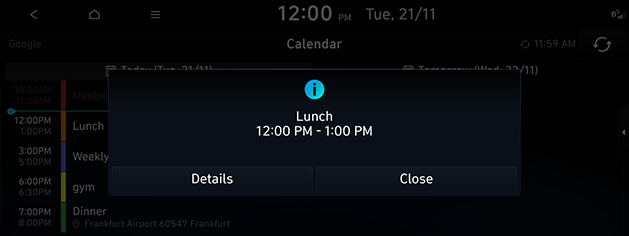
The schedule notification pop-up is provided according to the pre-populated notification time setting.
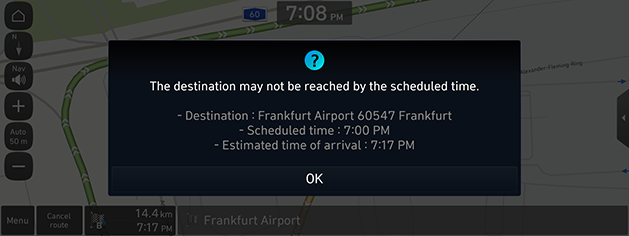
When setting a destination and navigating a route, the estimated arrival time is later than the appointment time information, a guide will be provided to the user with instructions that they may be late.
Weather
This provides weather forecast for the 6 days from the current day.
-
Press [
] > Bluelink > Weather.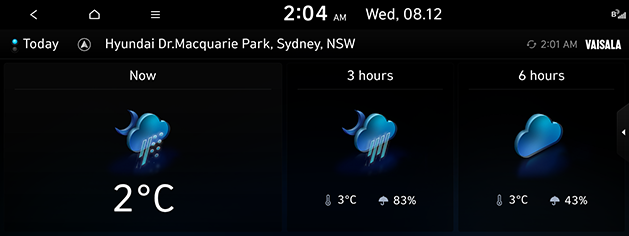
-
Today: Displays today's weather information.
-
Forecast: Display forecast for 6 days.
-
-
Press the desired list for more weather information.
-
Now: Displays weather information now.
-
3 hours: Displays weather information of 3 hours later.
-
6 hours: Displays weather information of 6 hours later.
-
Vehicle diagnostics
The Vehicle diagnostics feature automatically performs diagnostics on your car when a warning light comes on the cluster panel and displays the details of the vehicle malfunction on the screen for the driver.
Press [] > Bluelink > Vehicle diagnostics.
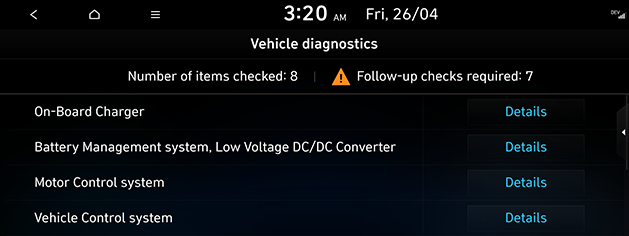
If Vehicle diagnostics was unsuccessful, the diagnostics are automatically performed again when you turn on your vehicle.
Bluelink® Settings
After you buy your car, you need to activate (register for) Bluelink Services to use any Bluelink Services features. You can activate via in-vehicle screen or the Bluelink smartphone app. If you want to activate Bluelink Services via smartphone app, you need to register for a new account by entering your email address, password, name and birthday. To register for a new account, you must accept the Terms of use and Privacy notice. If you have an existing account registered, you must enter the email address and password you used when registering for an account.
-
Press [
] > Bluelink > Bluelink settings.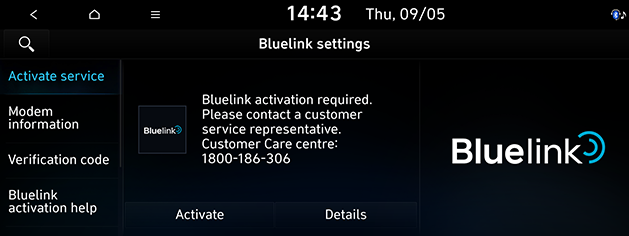
-
Press the desired items.
-
Activate service: This menu is used to activate the Bluelink service.
-
Modem information: This menu is used to check the modem information.
-
Verification code: This function uses this number to add this car to the Bluelink app.
-
Bluelink activation help: A help text for activating Bluelink is displayed.
-
Terms of use: This function can check the terms & conditions when activating the service.
-
Privacy notice: This function can check the privacy which requires the user's agreement when activating the service.
-
Deactivate Bluelink: This function can reset all system settings to factory default. All user data like paired devices and destinations will be deleted.
-
-
Do not turn the engine off while activation is in progress.
-
If activation fails, please contact your authorized Hyundai dealer.
-
During service activation, the hard keys in the head unit do not work.
Bluelink services features
Alarm Notification
In the event your vehicle’s alarm is activated, this feature will automatically notify via push message on your mobile application.
Auto Crash Notification
Provides immediate assistance when an accident occurs and an airbag is deployed.
In this event, an ACN signal, containing customer and location information, will automatically be transmitted to the response center. Upon receipt of the signal, a response specialist will attempt to establish voice communications with the vehicle occupants and forward any pertinent information to Bluelink emergency services.
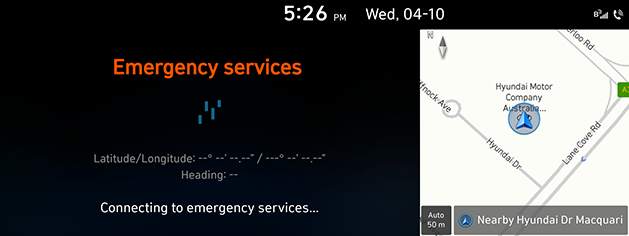
SOS
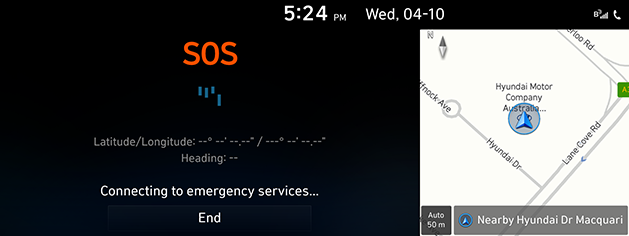
Customers request emergency Bluelink emergence services by pressing the dedicated “SOS" button in the vehicle. This action transmits vehicle information and location to specially-trained response specialists, who assist in coordinating the dispatch of appropriate emergency assistance to the customer.
The response specialist remains on the line with the customer until advised assistance has arrived.